









There are all kinds of ways to use your phone to help you learn a language of course, but here’s one you might not have come across before: You can enable real-time translations for a host of different languages right inside the Messages app on iOS.
It works through the Apple Translate built into your iPhone, and it’s a great way to keep reminding yourself of conversational words and phrases. As demoed by @thetarynarnold over on TikTok, they’ll appear right alongside the messages you’re sending and receiving.
However, you will need Apple Intelligence on your iPhone for this to work. Apple’s proprietary AI is built into the operating system that runs on the iPhone 15 Pro and iPhone 15 Pro Max from 2024, plus every iPhone released since then, as well as a few other Apple devices like the iPad mini and Apple Watch Series 6. Head to Apple Intelligence & Siri in the iOS Settings to make sure Apple Intelligence is enabled on your phone.
How to enable translations in Messages
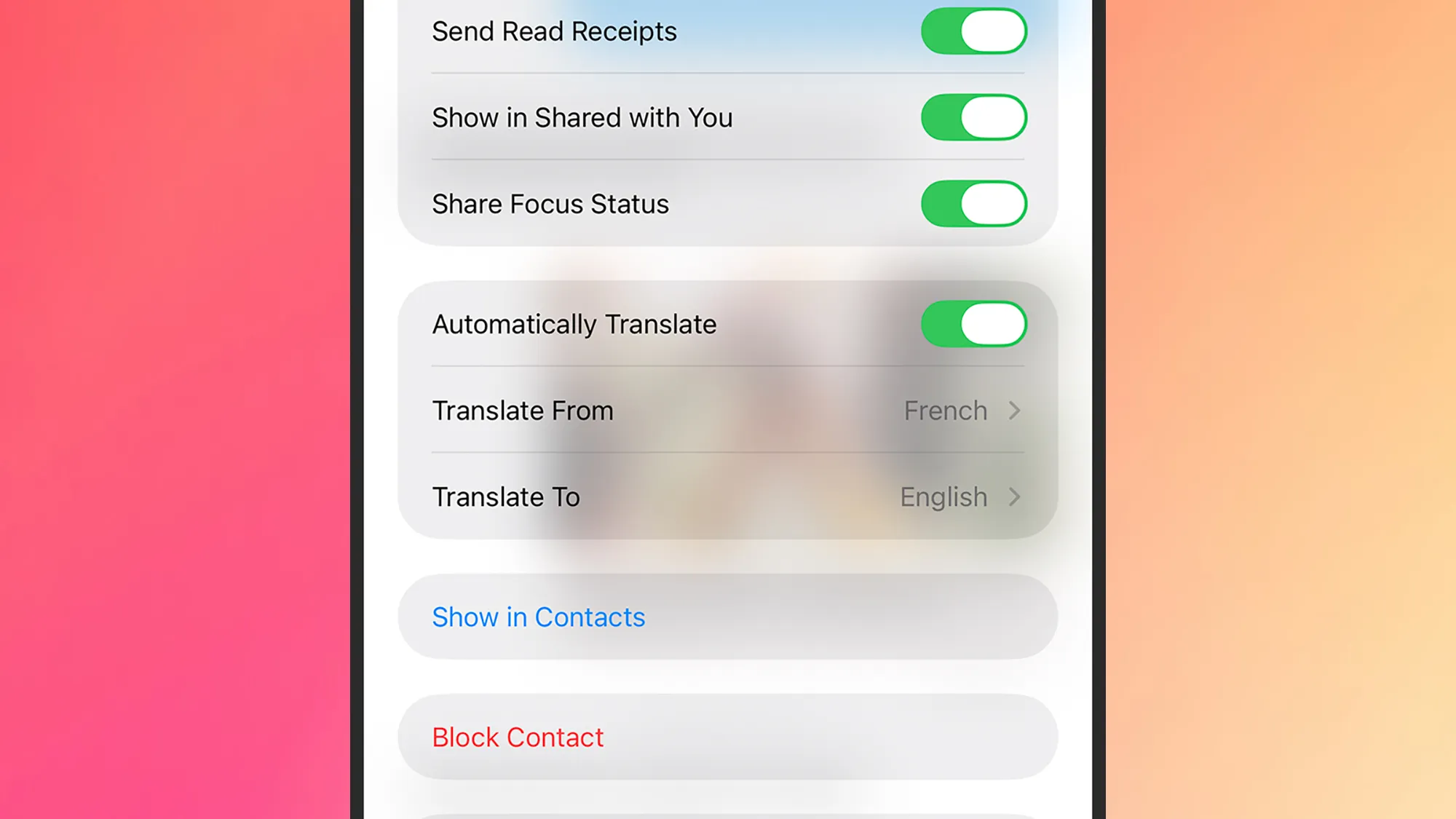
Open up the conversation you’d like to translate inside the iOS Messages app, then tap the name of the person you’re messaging up at the top of the screen. Next, enable the Automatically Translate toggle switch, and you’ll be asked to pick a language.
At the time of writing there are 20 available, and you can change the language you’re translating from and to at any time—the relevant options are underneath the Automatically Translate toggle switch, once you’ve turned it on.
From this point on in the conversation, every message you send in English will have the foreign translation right next to it, and every message you receive in the selected foreign language will have an accompanying English translation too. There’s a little drop-down menu just above the text input box that you can use to swap languages or stop the translation at any time.
This should work with anyone else on an iPhone, whether or not they have Apple Intelligence installed on their device. You should also see these translations from anyone texting you with an Android phone (Google Messages has a similar translation feature they can use too).
It’s not complicated, but that’s the beauty of it. While you couldn’t really learn an entirely new language just from doing this, it’ll definitely help you stay familiar with foreign words and phrases, as you get instant translations for what you’re saying.
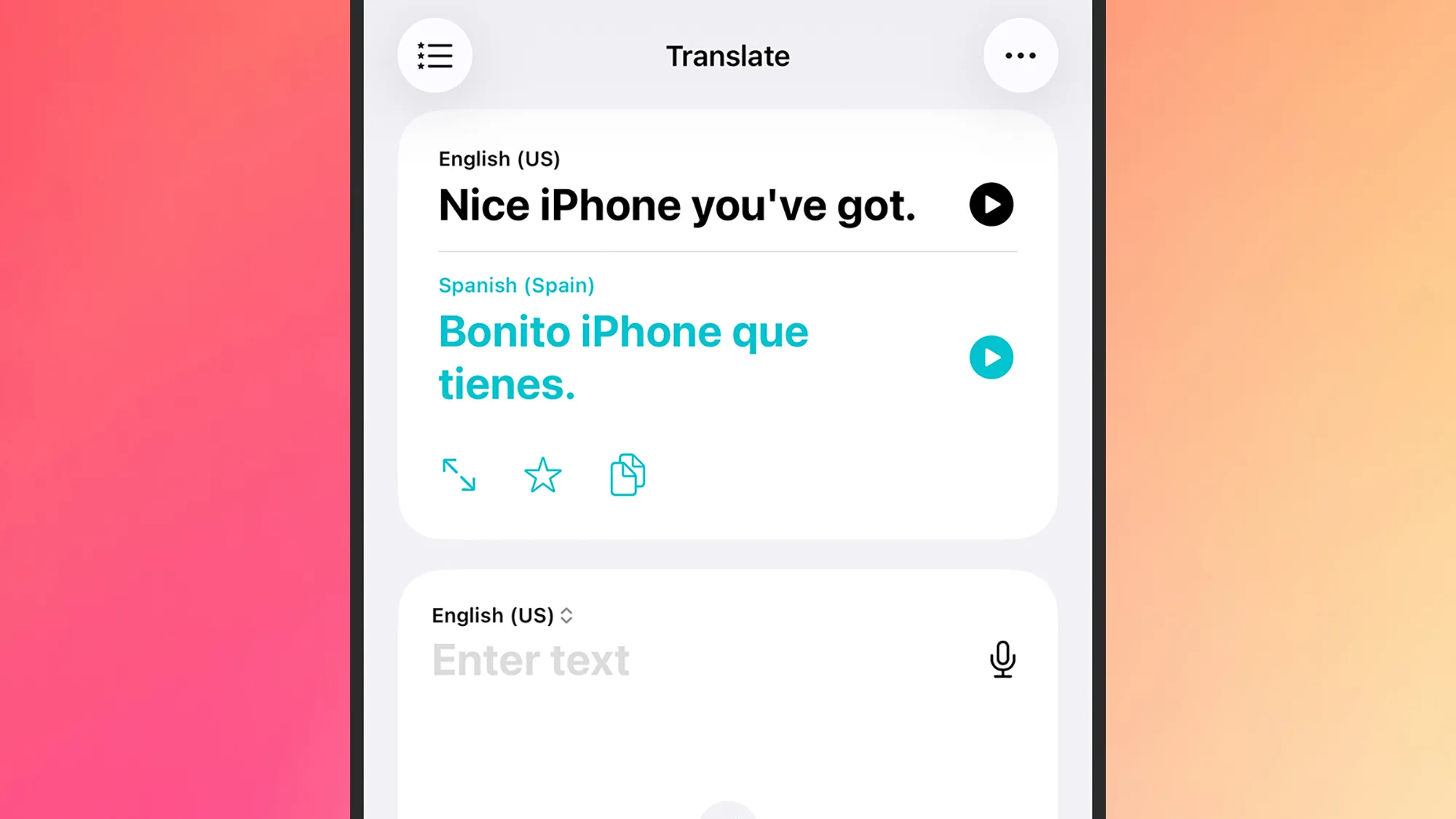
Assuming you do have Apple Intelligence installed on your iPhone, there are a host of other ways you can get translations from English into another language right away. It starts with the built-in Translate app of course, which can convert typed text and spoken audio between languages.
You’ll also notice a Camera button down at the bottom of the Translate app. Tap on this and you can point your iPhone camera at anything written in a foreign language—whether it’s a sign at a train station or something on a menu—and have the text translated. The Conversation tab, meanwhile, lets both you and someone else speak in different languages, and have the iPhone do the translating.
If you have a pair of AirPods Pro 2, AirPods Pro 3, or AirPods 4 with active noise cancelling attached to your iPhone, there will also be a Live button. Tap on this, and as other people speak to you in a foreign language, you’ll get translations right into your ears, through your AirPods. The dialog will show up on your phone too.
Translation is built into the FaceTime app as well. Tap on the screen to bring the controls up, then tap the three dots and pick Live Captions to use it. Something similar is available for live calls through the Phone app too, which you can access by tapping the three dots during a call, and choosing Live Translation.
All the language processing for these features is done on your device, and nothing is sent to the cloud or Apple’s servers. To change the languages you have downloaded to your iPhone and available in these apps, open the main iOS Settings screen and choose Apps > Translate > Languages.

2025 PopSci Best of What’s New
Source: Read Full Article