









Everyone seems to love recaps. Spotify popularized them with Wrapped, and now dozens of apps have their own version. You may not know that Google Maps does, too, and it’s pretty cool to see your travel history every month.
Google’s monthly timeline recaps utilize the Timeline feature, which keeps a history of everywhere you’ve visited with your phone. It can be a useful feature, but there are some obviously privacy concerns that go along with it. I’ll show you how to get the monthly recaps and maintain a bit of privacy as well.
The Timeline doesn’t work as it used to
Google made some changes to the location timeline
First, we need to talk about how Google Maps’ timeline works today. In 2024, Google overhauled its location data storage policies. Rather than storing location data in the cloud, it moved backups to on-device storage. This meant that you could no longer view your location timeline on the web—or any device that it didn’t happen on.
That trade-off in convenience is good for privacy, but it did change how the monthly recaps work as well. Before the change, Google sent monthly and yearly recaps in an email with nice visuals and easy-to-read highlights. Now, those emails are no longer sent, but you can still get a notification from the Google Maps app on your phone. It’s not as cool as the emails, but it’s something.
How to get Google Maps Timeline updates
Make sure these settings are enabled
There are a few things you need to make sure are enabled if you want to get Google Maps recap notifications on Android and iPhone. The most important is the Timeline feature itself. We can turn that on by going to Google Maps, tapping your profile icon, and selecting “Your Timeline.”
If Timeline isn’t enabled, you’ll see a button floating over the map that says “Timeline is off”—tap it to get started. You’ll be brought to the Google Account settings and the Timeline section. Tap the “Turn on” button, read the information page, and tap “Turn on” once more to confirm. Don’t select “Got it” just yet.
After enabling the Timeline, you’ll see a related control called “Set up auto-delete for Timeline.” This is an important thing to do if you want to maintain some level of privacy. You have the option to automatically delete your timeline after 3 months, 18 months, or 36 months. I have mine set to 18 months, but any option is better than never.
With that out of the way, we need to ensure you actually get the notification. For that, go back to the Maps home screen and tap your profile icon again. This time, go to Settings > Notifications > Location and profile. The one to check is “Google maps timeline.” Turn this “On” or set it to “App only” if you just want to see the notification when you open the app.
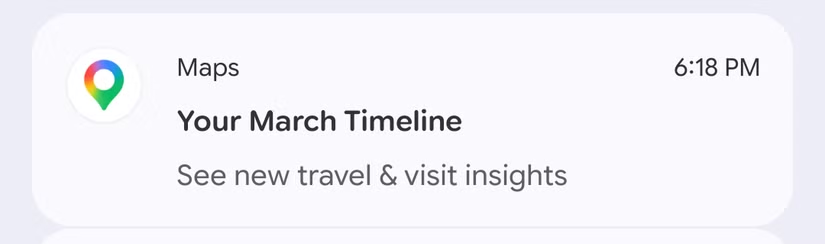
Now, when the time comes, the notification will be titled “Your [Month] Timeline: See new travel & visit insights.” Opening the notification takes you to the “Insights” tab in the Timeline with the past month selected. It’s possible to manually visit this screen by going to profile icon > Your Timeline > Insights > tap the month drop-down.
Here’s what you actually get
It’s a lot
With all that configuring and enabling out of the way, let’s talk about what the monthly recap actually includes. The top section is “Travel,” and it shows how many miles you spent walking, driving, cycling, on transit, and other modes that pertain to your personal life. There’s also a bar graph next to each one so you can see how it compares to previous months.
Under that is the “Visits” section. Here’s where Google shows all the different types of places you went. There are several categories, including “Food & Drink,” “Shopping,” “Attractions,” “Culture,” and more. You can see how much time you spent in each category and tap “See places” for a specific list of locations. Like “Travel,” this section also has bar graphs for comparing to previous months.
Now, if your month was particularly eventful, you may also have a “Highlights” section at the very bottom. This usually means you did something more than any of the previous six months. For example, a couple that I’ve seen for myself were, “You visited 3 bars in September” and “You visited 15 eateries in October.”
That’s pretty much it! Again, you can see these stats at any time on your own, but the monthly notifications are nice. It’s a simple little way to see how active you’ve been in the world outside your home, and you only have to give up a bit of privacy to see it (sarcasm).

Source: Read Full Article