









I recently switched back to the Linux desktop, and just in time, because GNOME 50 is now making its way to the latest crop of Linux distributions—and it comes with many of the features I have waited years to see.
A desktop that adapts to any monitor
GNOME now feels at home on your new display
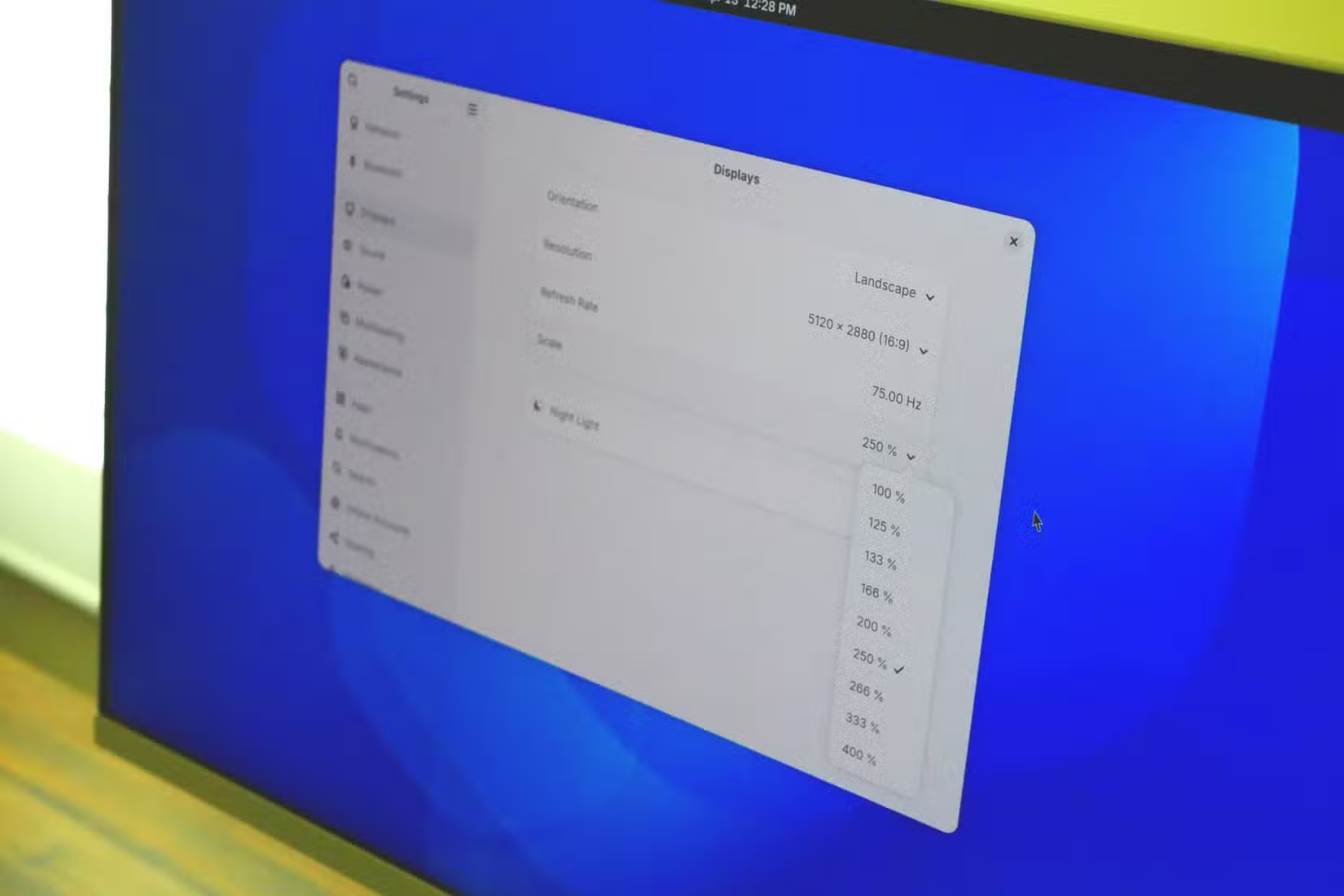
HiDPI displays are nothing new, but many Linux desktops have struggled with them, including GNOME. Some versions of Linux, like Ubuntu, have introduced fractional scaling to help text and images better scale to monitors with super-high display resolutions, with mixed results. With this release, fractional scaling is now officially part of GNOME. This means you are no longer limited to the binary choices of 100% and 200% when trying to make apps legible on your display. Smaller increments such as 125% and 150% are available, along with weird options like 133%.
GNOME 50 also now supports variable refresh rates, one of many features common to gaming monitors. This means you can move your cursor around with the fluidity allowed by a monitor’s maximum refresh rate (such as 144 Hz) even when using software capped at a lower refresh rate (such as 60Hz). If you’re one of many PC gamers switching to Linux for the first time, you can now better enjoy that gaming monitor that GNOME wasn’t making the most of. I’ve personally avoided even considering nicer displays because I couldn’t take advantage of them. Now those restraints are falling away.
GNOME 50 is better for parents and kids
Parental controls that let me manage the settings I care about
Before having kids, I imagined mine growing up with Linux-powered PCs. I tried but quickly ran into the challenges that come with handing Linux to a child. Parental controls are largely absent from most Linux desktops, and those that exist are rather basic. Shout out to Endless OS and elementary OS for being ahead of the curve here.
GNOME 50 gives GNOME’s existing parental controls a much-needed update. I can now set screen time limits, such as restricting a laptop’s usage to two hours per day. GNOME will also send the child alerts letting them know when their time is starting to run out. This is behavior my kids are used to on Android tablets and the Nintendo Switch. Just like those devices, GNOME now lets me set a bedtime schedule where the kids can no longer sign into the device after a certain time. I find these settings far more valuable than GNOME’s pre-existing options of simply blocking certain apps.
In the background, GNOME has also introduced support for filtering certain types of web content. While such options are not yet visible in the Settings app, I’m happy to know such work is underway.
I can now more easily mark up documents
One of the best things about having a tablet with a stylus
Over the past few years, I’ve been working from a Galaxy Z Fold 6, where I fell in love with the S Pen. I cherish the ease with which I can mark up documents using my stylus, which is part of the reason I wanted to find a Linux tablet with active pen support before I would even consider migrating back to Linux.
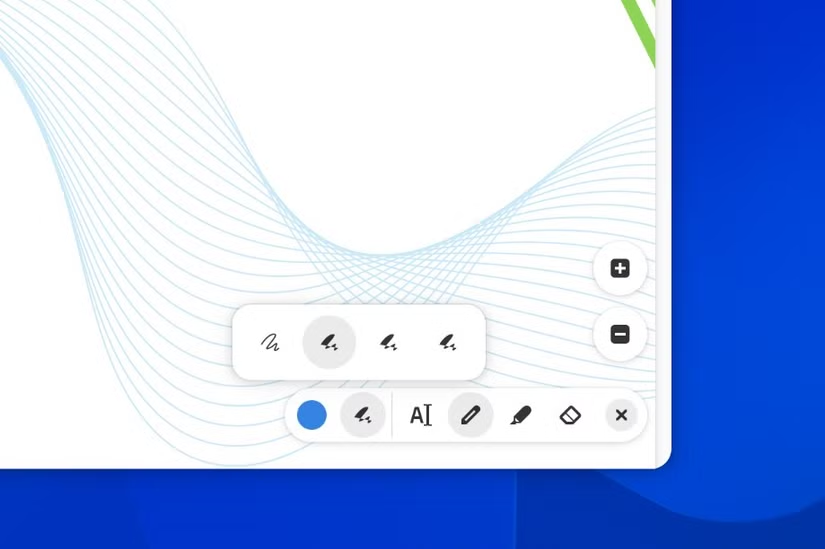
I’m happy to see that GNOME 50 has improved annotations in the default document viewer app. This update overhauls the app’s existing annotation feature with a more accessible and modern design along with expanded functionality. It is now easy to draw on a PDF, highlight text, erase mistakes, and move any of these annotations around. This is the kind of feature that will have me step away from my desktop and pull out my StarLite tablet whenever it’s time to sign a document or fill out a form—tasks that used to be such a pain in my prior years of Linux.
The file manager continues to get faster
A love letter to those of us who regularly interact with files
It’s safe to say that most people now work out of a web browser or apps that have abstracted away the file structure underneath. Not so for me. I open my file manager all the time, even when working from my phone. I like working with data that’s under my control.
While using a phone as my primary PC, I was blown away by the speed of Samsung’s My Files file manager, which loaded files and thumbnails instantly on a Snapdragon chip. As a result, I’m happy to see that GNOME 50 continues to make improvements to the speed of GNOME’s file manager. Icons and thumbnails now load more quickly, and the app uses less memory. The app is already zippy on both my desktop and my tablet, but I’m happy to see it get even faster.
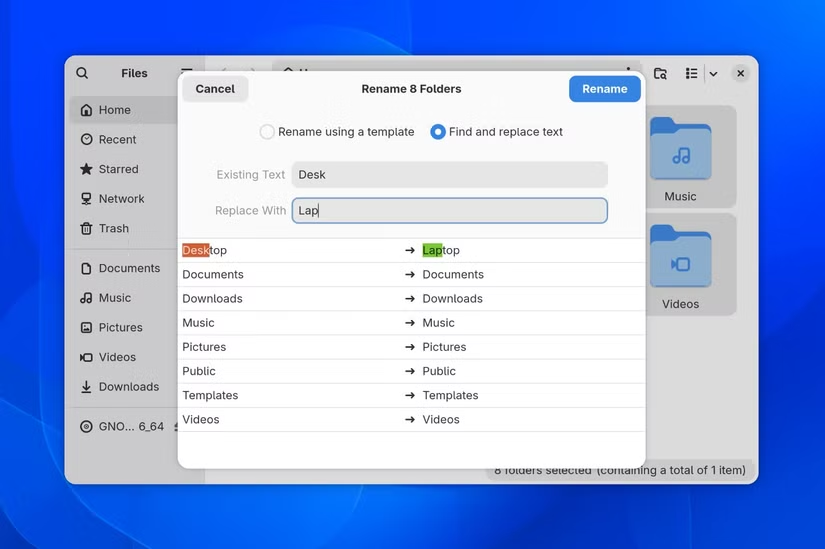
GNOME Files also gains feature improvements, such as refinements to the batch file renaming feature, which is functionality I missed having baked directly into my file manager when working from my phone.
GNOME 50 isn’t just about your desktop.
I have been pleased to see just how far GNOME software has come during my time away. Nearly every issue I had with GNOME apps in the past has been resolved. It’s now rare for me to open an app that doesn’t have an updated GTK4 design, and new software has come out to fill the gaps in my workflow. Gradia is a screenshot annotation tool that is my favorite across any desktop or mobile OS, and it made its debut in the past six months. The same is true of Sessions, a stylized Pomodoro tool.
With better monitor support, expanded parental controls, and easier document annotation, GNOME 50 has gone after my remaining frustrations in a big way.
Source: Read Full Article