









Gemini has long been able to connect to other Google apps, but earlier this year those integrations were made tighter and more seamless with a feature called Personal Intelligence. Now, Personal Intelligence is expanding into Google Photos and picking up AI image creation capabilities, courtesy of the Nano Banana 2 model.
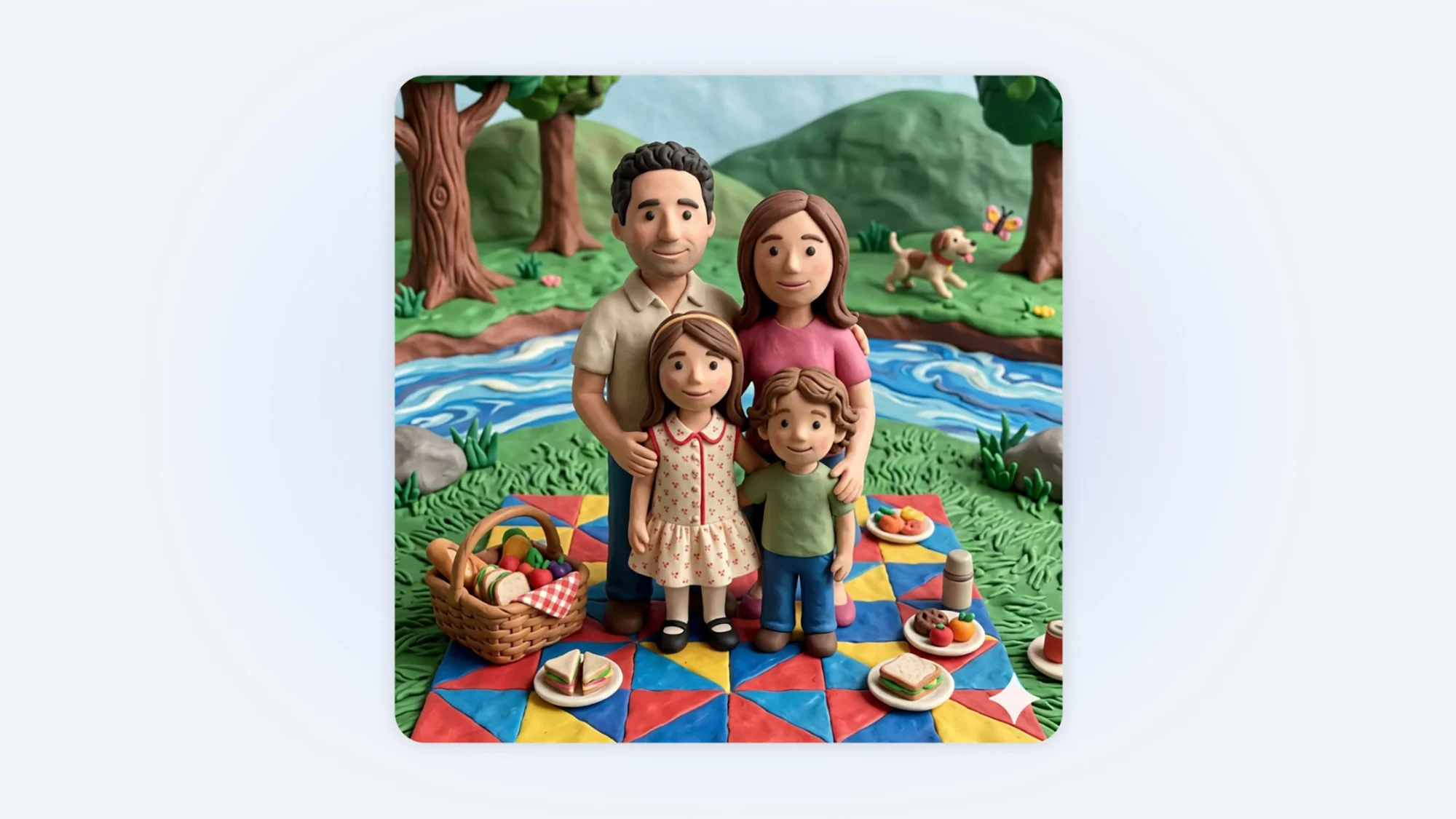
The idea is that you don’t have to manually select a picture in Google Photos and tell the AI to do something with it. Instead you just type a prompt such as “create a cartoon showing my family enjoying our favorite activities,” and Gemini will do the rest—mining your Google Photos library for the relevant information and people.
Another example prompt Google gives is “create a watercolor image of my dream house nestled in my favorite setting.” You can see how the new integrations save you time—you don’t have to explain what your dream house or your favorite setting look like, as long as Gemini can work it out from your photos.
“Since this is built into how you normally use the Gemini app there’s no extra setup,” says Google. “If you’ve already linked your Google apps, that personal context is ready and waiting the moment you start creating images… the results will automatically reflect your specific tastes and lifestyle, gleaned from the Google apps you’ve connected to.”
The upgraded Personal Intelligence experience is rolling out now inside the Gemini app for users in the U.S., but you need to be a paying customer to access it, on either the AI Plus, AI Pro, or AI Ultra plans. Google says access for more users and support for Gemini inside Chrome is coming soon.
How it works—and how to turn it off
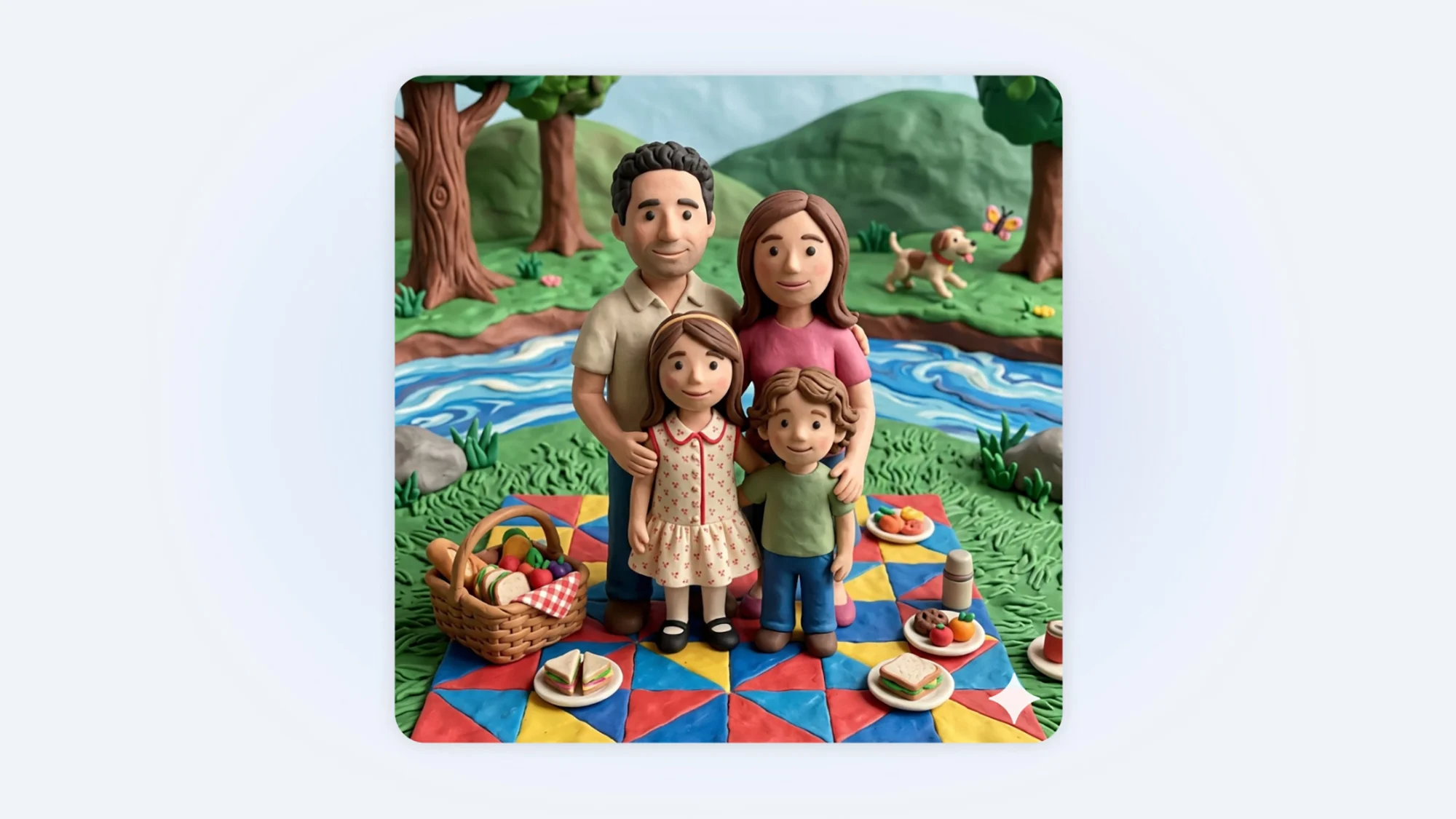
Get a picture of your family, made in claymation style.
Credit: Google
This is being pushed out now to Google AI subscribers in the U.S., so if that includes you then you shouldn’t have to do anything special to get the new feature in Gemini on the web or on mobile. You may well see a pop-up message inside the app announcing that you’ve got the upgrade, which is what Google often does.
With the Create image option selected, you can simply type out what you want to see, and Gemini takes care of the rest. Something like “create a sketch of my family on vacation at the beach” or “make a photo collage of my desert island essentials” should work, if there’s enough information to go on in Google Photos.
What do you think so far?
Google says Gemini will look at the labels you’ve applied in Google Photos, such as the names of people and pets, to try and work out what you’re asking for. There’s clearly quite a bit of educated guesswork going on with the AI here, and “Gemini might not always pick the exact photo or detail you had in mind on the first try,” according to Google.
You can always click on the Sources button underneath a generated AI image to see the photos that Gemini has picked as reference points, and ask Gemini to make edits to what’s been created using follow-up prompts. You can also click the + (plus) button on the prompt box if you want to point Gemini toward a different reference photo.
There is something a little creepy about prompting Gemini using these intimate details about your life, but it’s only really the integration between apps that’s new: If you use Google Photos, then it’s constantly using AI to recognize what’s in your pictures so you can better sort through them and organize them, including family members and pets.
Google says Gemini doesn’t “directly” train its AI models on your photos, but instead uses “limited” information from them to improve the user experience. Connecting Google Photos to Gemini remains an opt-in choice, and one you can reverse at any time: Inside the Gemini app, click the cog icon (on the web) or tap your profile picture (on mobile), then choose Connected apps to make changes.
Source: Read Full Article