









If you sideload books onto your Kindle, you’ll know that things don’t always go smoothly. Files sometimes don’t even convert properly, the formatting can be completely unpredictable, and your library becomes messy very quickly. That’s why I convert my eBooks in Calibre before putting them on my Kindle. It fixes almost all the problems.
Get files into the right format
Avoid the problems with Amazon’s own conversion tool
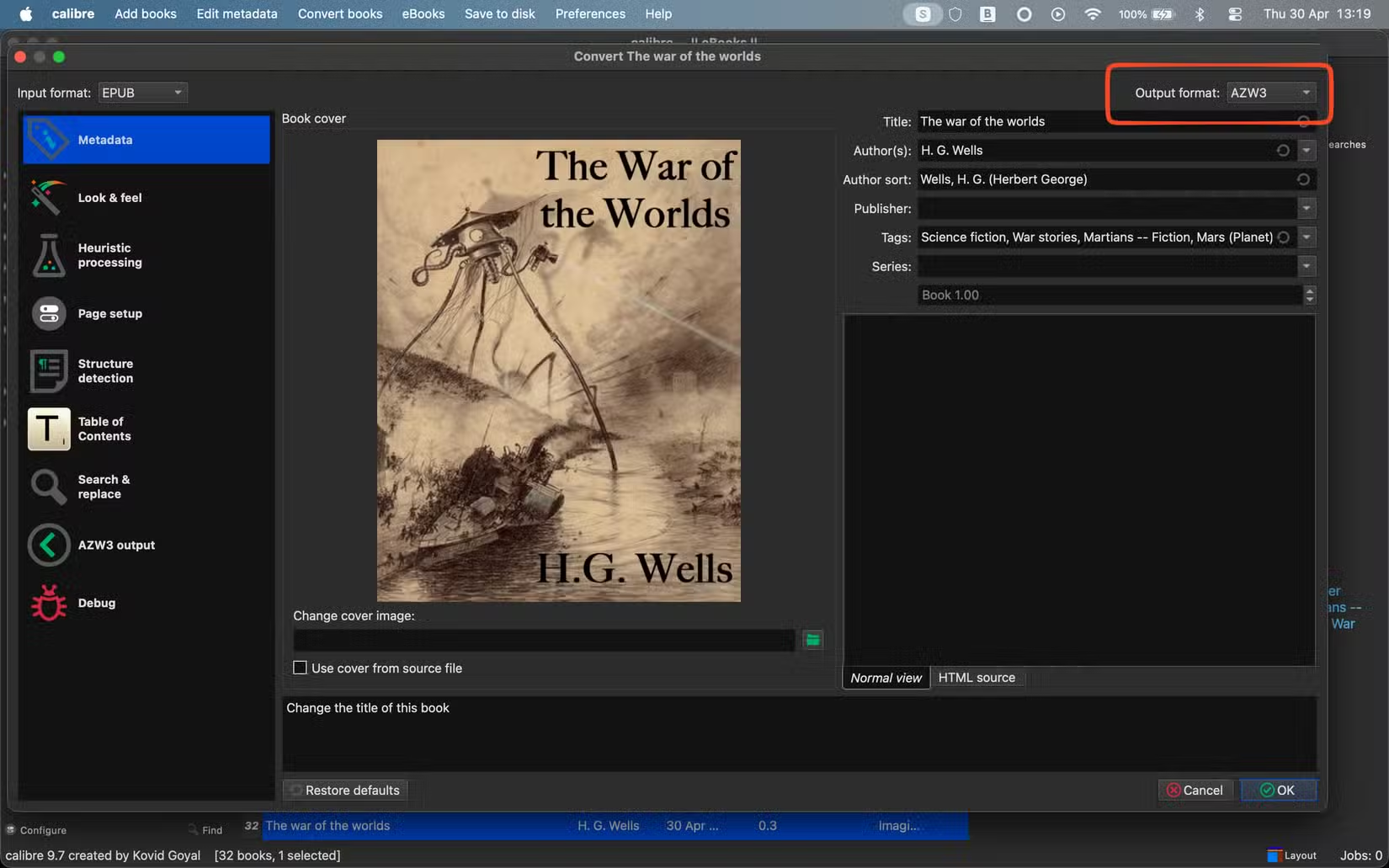
Most eBooks you download from alternative stores and sites are in the EPUB format that Kindle doesn’t support natively. Amazon’s Send to Kindle service is a handy workaround that converts the files to make them readable.
In theory, at least. In reality, I lost track of the number of times that files would get rejected for some unspecified reason. And without any feedback at all, it was impossible to know what went wrong. In the end, I realized it was a lot easier to just run the files through Calibre first, convert them into the right format, and upload them that way. Problem solved.
Fix the formatting and layout
Get those chapters sorted
Some eBooks can have some pretty wonky formatting. It might be page breaks in the wrong place, code instead of punctuation marks, or other random special characters appearing.
These can all make a book harder to read. But actually, my biggest bugbear is when the chapters aren’t set up correctly. I use the “Time left in chapter” feature on my Kindle constantly, and find it really disruptive when it shows the time left in the whole book instead, because the chapter markers haven’t been set up.
In Calibre, click the “Edit Book” button to give the layout and formatting a quick check over, followed by the “Edit Table of Contents” button to check that the chapters are in place. If not, the “Generate ToC from all headings” or “Generate ToC from files” options normally do the trick.
- Brand
-
Amazon
- Screen
-
7-inch, 300 ppi, 16-level gray scale
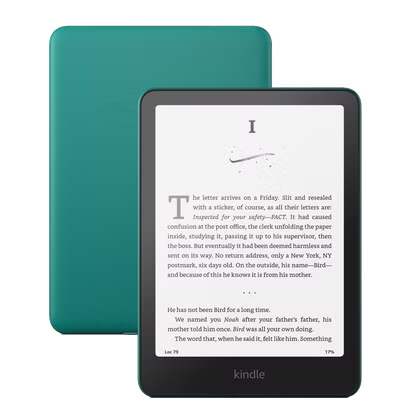
With a 7-inch display, high contrast, and sharp image quality, the Amazon Kindle Paperwhite will help you fall in love with eReaders. It even supports Bluetooth devices for setting aside the eReader and enjoying audiobooks through headphones or earbuds.
Make sure the title and author are right, at least

I’m not especially pedantic when it comes to the metadata of my eBooks. I don’t need the publishing information, descriptions, and all the rest filled in neatly and accurately. But I do care when the important bits are outright wrong.
Some eBooks don’t have the title set up properly; sometimes, the title and author fields are swapped for some reason. Not only does this look bad, but if the book sits in your library for a while, you might forget what it even is. I don’t spend a lot of time on it, but whenever I import a new book into my Calibre library, I click the “Edit Metadata” just to make sure that it all looks okay.
Adding cover art if it’s missing
Or create something better than the one provided
When you download from free eBook sites, you might sometimes find that the cover art is missing. Or, if you’re choosing some classic literature, the art that is there might not be very attractive. Fixing this is another good use of Calibre.
At a pinch, you can use Calibre’s “Generate Cover” options, which give you a few templates that you can customize. But since you’re only using it for your own purposes, the better option is to head to Google Images to find something better and more suitable. You don’t have to stick to official book covers; you can create your own.
Convert PDFs into readable eBooks
Turn those big documents into proper books
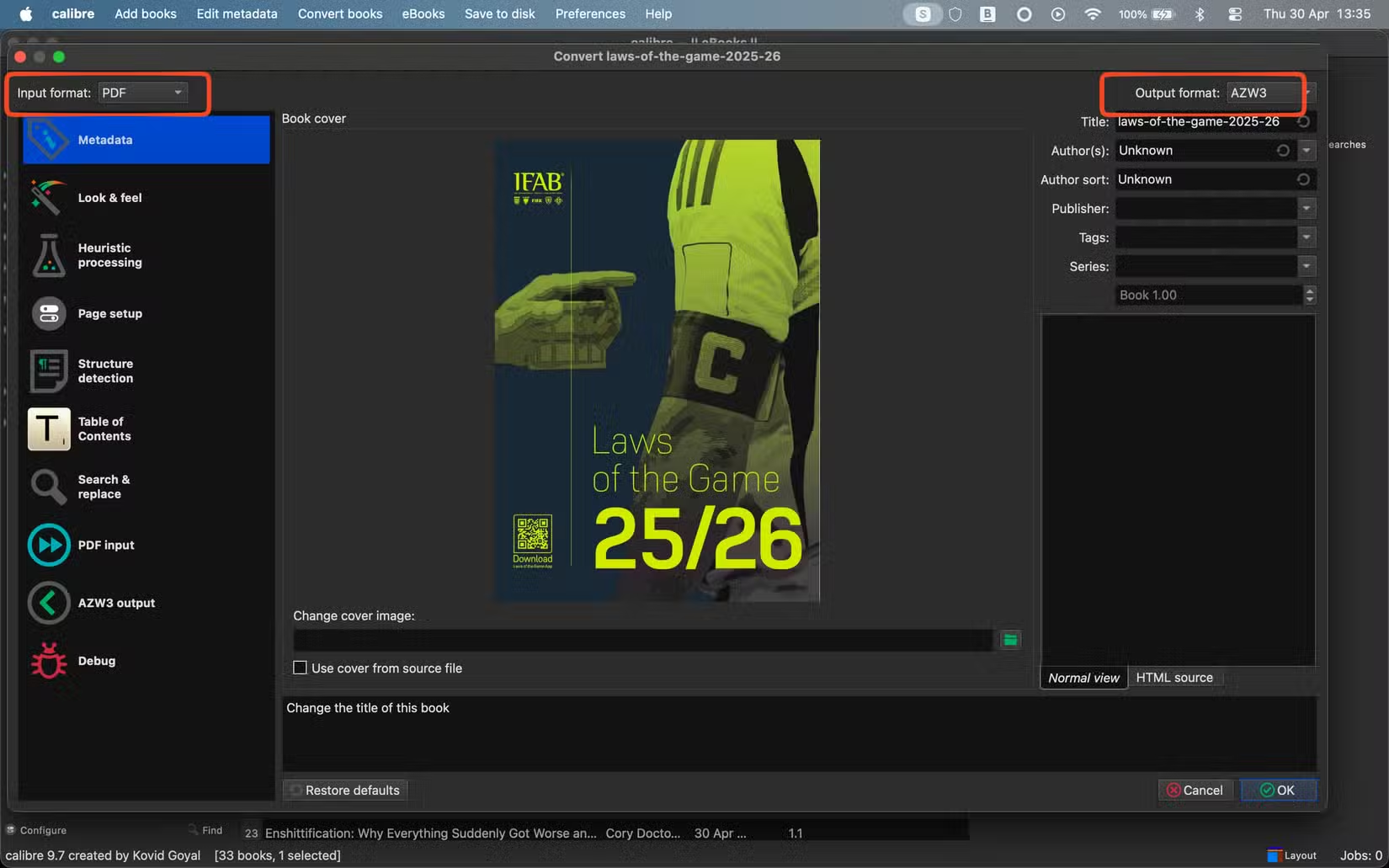
Although you can read PDF documents on Kindles, the experience isn’t great. If you’ve got one that you want to read properly, you can use Calibre to convert it into an eBook. This gives you proper text flow, pages, chapters, and all the rest. The conversion often isn’t perfect, and you might need to edit the resulting file even more to fix the layout, but it’s worth the effort for important files.
With a little effort, you can even save entire websites as eBooks in Calibre.
Reduce the file size
Compress image-heavy titles
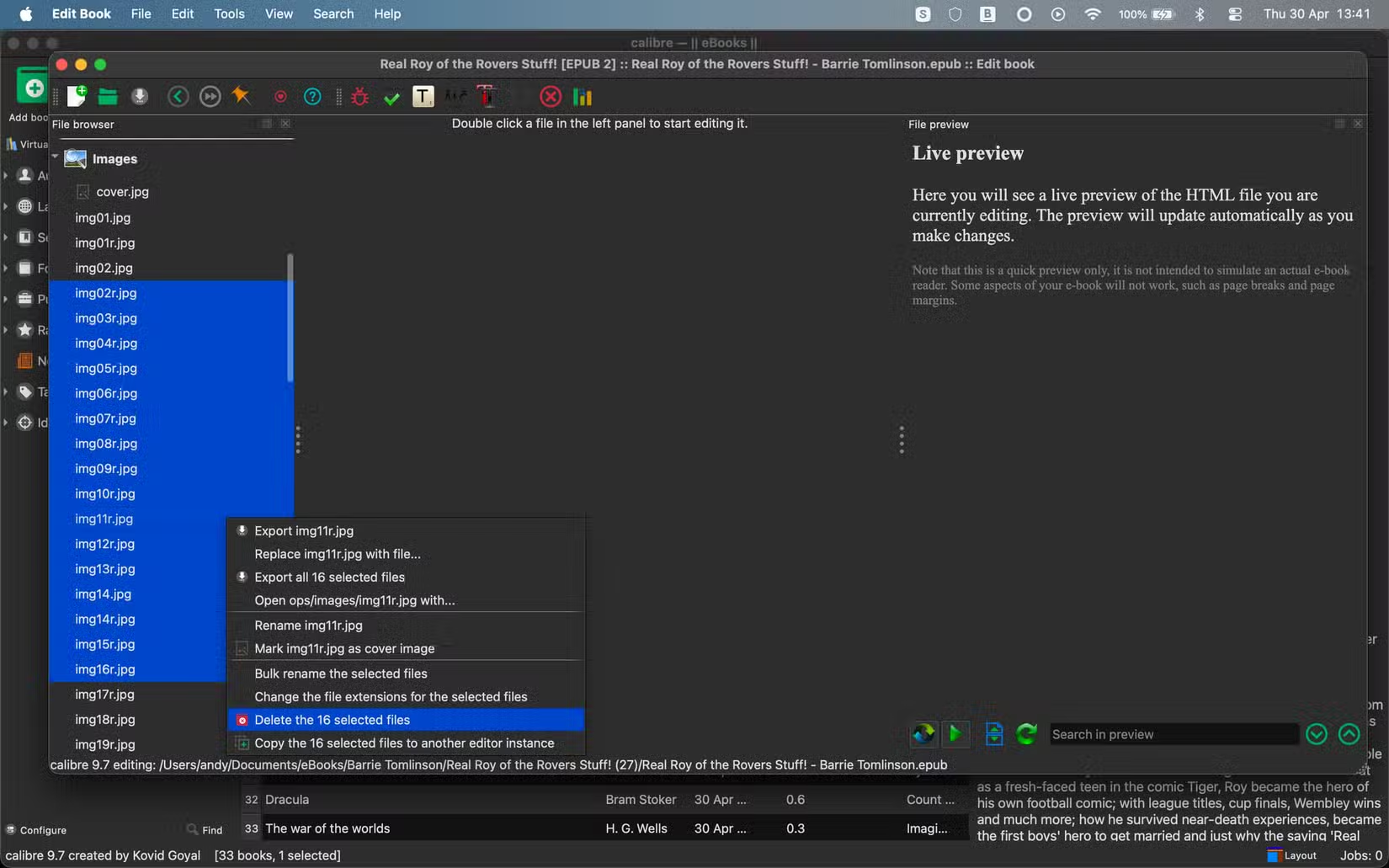
The last reason why I convert my eBooks in Calibre is to reduce their size. This mostly applies to image-heavy titles—autobiographies, for example, will often contain a lot of photos that can bulk up the size. Kindle storage space is limited, so if you’re sideloading a lot of books, you don’t want to fill it up too quickly.
By going to “Edit Book” and then selecting all the image files, Tools > Compress Images Losslessly lets you reduce the file sizes. Personally, I think that photos in books are usually more suited to the print rather than the digital versions, so I just delete them all and cut the size of the book right down in the process.
Calibre is a vital part of my eBook toolkit
A Kindle works great if you only ever use Amazon’s store. But if you download books from other sources, or if you want to remove the DRM from the Kindle books that you’ve bought, then Calibre is a really useful tool. I use it both to manage my eBook library and also to convert and tidy up the files I’ve got from other stores, to guarantee that they all work as expected.
Source: Read Full Article