









Pixel phones aren’t exactly known for being adventurous. Google mainly sticks with clean designs and simple features—that’s part of the appeal. However, it did once experiment with nifty touch-less gestures. Now you can bring them back to any Android phone.
The Pixel 4 launched in 2020, and it was one of the more forgettable phones in the series. There was one interesting thing about it, though: it had a radar sensor. You could wave your hand past the top of the phone to skip media back and forward, or push an open hand toward it to play or pause. Radar also allowed the Pixel 4 to have secure face unlock, but that’s another story.
You don’t need a radar sensor for air gestures
There’s a much simpler method
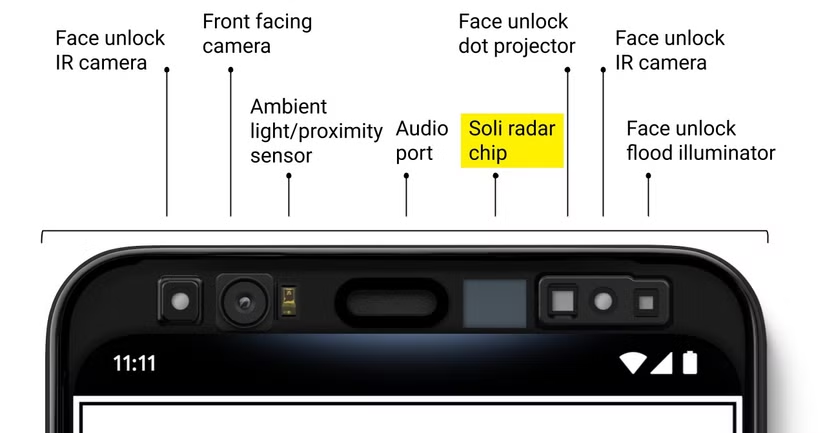
Google ditched the radar sensor after the Pixel 4, but there’s still a sensor in every single Android phone that can be utilized for air gestures. It’s called a “proximity sensor,” and all it takes to set up the gestures is an excellent app called MacroDroid.
In the past, we’ve shown you how to use this app for cool stuff like custom charging notifications, launching apps when you connect headphones, and stopping devices from auto-connecting to Bluetooth. Now, we’ll be putting it to use to control your phone without touching the screen.
First, download MacroDroid on your Android phone and go through the introduction screens. You’ll immediately notice there’s a lot going on in this app. That’s very true—and why it’s so useful—but it’s actually a lot simpler than it appears. We can get this set up in about two minutes.
Tap the “Add Macro” tile in the top left. You’ll see three components to the macro: “Triggers,” “Actions,” and “Constraints.” Start with “Triggers” and tap the “+” button, then choose Sensors > Proximity Sensor. There are four different proximity-based triggers to choose from:
- Near: Activates when an object is detected close to the proximity sensor.
- Activates: Activates when the proximity sensor detects that an object has moved away.
- Slow Wave: Activates when an object passes near the sensor with a wave gesture lasting 500ms or longer.
- Fast Wave: Activates when an object passes near the sensor with a quick wave gesture under 500ms.
After you’ve selected one of the triggers, you’ll be taken back to the macro builder. Next, tap the “+” button for “Actions.” Here’s where you get to decide what you want to happen when you perform the gesture. I’m setting it up to skip to the next song, which can be found in Media > Control Media > Simulate Audio Button.
Another example of a useful gesture you could create is launching Gemini when you bring your phone to your mouth. For that to work, you’d want to choose “Near” as the Proximity Sensor Trigger, and Device Actions > Voice Search as the Action.
The last component is “Constraints,” and you may or may not need this one. A constraint determines when the macro will or won’t run. Let’s say I only want the media gestures to activate when my phone is lying on it’s back on my desk. I can choose Device Facing > Face Up, and it will only be active when in that position. It just depends on what you’re doing with the gestures.
With all that out of the way, give the macro a name at the top of the screen and tap the floating button at the bottom left to save it. Repeat this process to create macros for each Proximity Sensor Trigger.
Simple and effective
It takes a bit of practice to get the gestures figured out, but you’ll find they work surprisingly well once you do. There are a few other ideas for proximity-based macros on the MacroDroid Wiki page. Google’s air gestures were pretty limited, but MacroDroid lets you go wild with them.

5 Google Pixel Features You Probably Didn’t Know About
Your Google Pixel has many clever features, some tucked away in menus or introduced quietly. If you’ve updated to Android 15 or even if you’re running an older version, there’s a good chance you’re missing out on some of these hidden gems.
Source: Read Full Article