









I think Pixel devices have attractive hardware, but personally, it’s the software that turns me off. Google has gone all-in on Gemini and AI, introducing it in an ever-growing number of ways. Fortunately, that turning off can go both ways. If you also think “No, thanks” every time Gemini rears its head, here are various ways you can take back your phone.—
Remove Gemini from your app drawer
To Google’s credit, you can disable this app like any other
For years, Google has long been the biggest source of Android bloatware*. Every Android device I buy comes with pages of Google apps that I either uninstall or disable. Gemini is one of the newer additions to that list, and I’m happy to say that, on most phones, it’s as easy to banish as all the others.
All I need to do is:
- Open the app drawer on my phone.
- Scroll down to Gemini.
- Hold down the app and tap on the App info option.
- Then hit the Disable button.
The Gemini icon then disappears, and on most phones, that’s the end of the story. On a Pixel phone, that’s not yet all she wrote.
Remove Gemini from your power button
I press this button when I don’t want to talk, thank you very much

Unfortunately, removing Gemini from a Pixel isn’t so simple. Even with the Gemini app removed, holding down the power button will still bring up the chatbot, which will wait patiently for you to ask a question so that it can chat on and on with zero awareness of your facial expression suggesting it speed things up.
To change what happens when you hold down the power button:
- Go to Settings > System > Gestures > Press & Hold Power Button.
- Change the selection from Digital Assistant to Power Menu.
Now when you hold down the power button, you will see Android’s familiar menu with the options to power off, restart, or lock your phone. There’s also a bright red button for use in emergencies.
Turn off Circle to Search
If I can’t circle for another search engine, I’ll stick to typing

Circle to Search is one of the more genuinely useful AI features anyone has shown off at a smartphone event. It’s also relatively old technology that predates the modern AI fetish. Google Lens has been able to search images for over a decade. The innovation introduced by Circle to Search isn’t the AI bits but rather the faster way to take a screenshot and crop it down to only the part you care about. I’d love this feature, but I ditched Google Search for a more private alternative years ago, and this functionality is not enough to entice me back. Unfortunately, this feature only works with Google.
To disable Circle to Search, return to Settings > System and tap the toggle next to Circle to Search. With this done, holding down on the handle at the bottom of the screen will no longer pull up a Google prompt.
Not feeling dazzled by Magic Cue?
A feature that’s thankfully not included on my Pixel 10a
One perk of the budget Pixel line is that it doesn’t come with as many AI features. Magic Cue is one such addition that is noticeably absent from the Pixel 10a I reviewed. So I reached out to a colleague for screenshots taken on their Pixel 10. To give the feature the axe, simply open Settings > Magic Cue. Once there, you can toggle off all the various aspects of the feature that you have no interest in, such as “Find info instantly” and “Finish tasks faster.”

7/10
- SoC
-
Google Tensor G4
- Display
-
6.3-inch Actua display
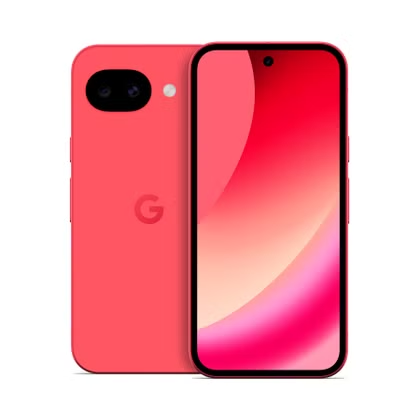
The Google Pixel 10a is a barely updated version of the Google Pixel 9a, with a slightly brighter screen and an upgrade from Gorilla Glass 3 to Gorilla Glass 7i. Google has shaved the remaining few millimeters from the camera bump, making it completely flat. Unlike prior versions of the Pixel a series, this model year does not share the same Tensor processor as the mainline Pixel 10.
Remove Gemini from Google Messages
No, Gemini, you aren’t one of my contacts
When you open Google Messages, there is a Gemini icon that hovers over the icon for creating a new chat. Tapping this icon starts a chat with Gemini, which will then appear in your list of messages alongside your conversations with loved ones, friends, colleagues, two-factor authentication texts, and spam. If you, like me, prefer to talk to someone sentient, here’s what you do.
- Open settings by tapping on your profile image at the top of your chat thread. If you don’t have an image, it may be the first letter in your name.
- Select Messages settings.
- Tap Gemini in Messages.
- Hit the toggle next to Show Gemini button.
I wish I could say that from here on Google Messages is now reserved only for conversations with people, but alas, messages from bots just keep coming.
I wish I could say your AI purge is now complete
With these features disabled, your Pixel phone is now rid of the most disruptive AI intrusions. That said, you aren’t completely rid of Google’s AI gimmicks. You still have other features like Magic Editor to ignore or disable as well. Fortunately, those features are siloed away in Google apps that are easy enough to ignore.
Source: Read Full Article