









Windows 11 keeps adding features most people never notice, and some of them are far more powerful than they look at first glance. One of the best examples is Sysmon, a deeply capable system monitoring tool. It’s not something you’ll stumble across in the Start menu, and there’s a good chance you’ve never even heard of it. But it’s there, and it can reveal far more about what your PC is actually doing than most built-in tools.
What makes Sysmon interesting isn’t just what it does, but where it came from. This isn’t a typical consumer-facing feature designed to make Windows feel easier or more polished. It started life as a tool for IT pros and security analysts, the kind of thing you’d use to dig into suspicious behavior or track down hard-to-explain system activity. Now it’s more integrated into the Windows ecosystem, which means that level of visibility isn’t limited to third-party utilities anymore. It’s still powerful, still a little intimidating, but it’s no longer out of reach for the average user.
It tracks everything your PC is doing
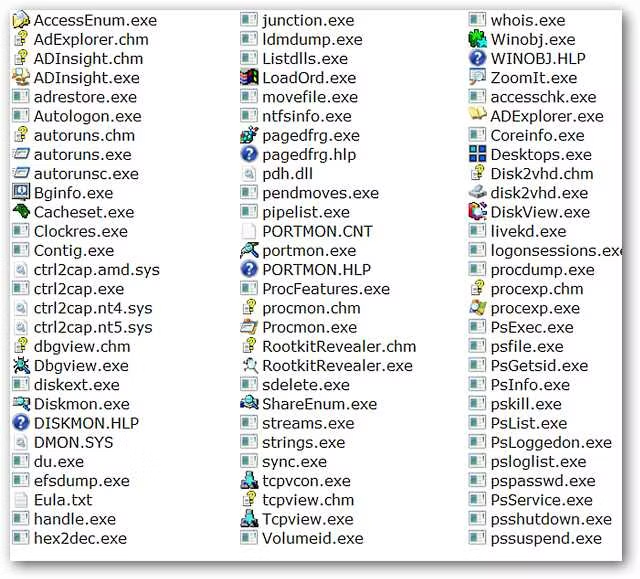
Sysmon, short for System Monitor, comes from Microsoft’s Sysinternals suite, which has long been a go-to collection of advanced tools for digging into how Windows actually works. At its core, Sysmon runs in the background and logs detailed system activity that Windows normally doesn’t surface in a meaningful way. We’re talking about things like every process that starts, the command lines used to launch them, network connections being made, and even certain file changes. All of this is written to the Windows event logs, creating a much deeper, more persistent record of what your system is doing over time.
So why is Microsoft leaning into something like this now? A big part of it is security. Modern threats don’t always look like obvious malware. They blend in with normal system behavior. Tools like Sysmon make it possible to spot patterns and activity that would otherwise go unnoticed. At the same time, Windows has been slowly pulling more of these power-user and enterprise-grade capabilities closer to the core OS, even if they’re still a bit hidden. The catch is that Sysmon isn’t presented like a typical feature.
How to install and enable Sysmon on Windows 11
You still have to set it up manually
Microsoft is gradually bringing tools like Sysmon closer to Windows, but for most users, the current method is still through the Sysinternals Suite.
Even on newer versions of Windows 11, Sysmon isn’t enabled or ready to use by default. You’ll need to install and configure it before it starts logging anything. If you’ve already installed the Sysinternals Suite from Microsoft, you’re already halfway there. Sysmon is included, you just need to install and enable it from the command line. If not, you can grab the suite from the Microsoft Store or download it directly, then follow the same setup process.
Open Windows Terminal as administrator, navigate to the folder where Sysmon is located, and run sysmon -i. That installs the service and starts logging immediately.
Once it’s running, you’ll find its logs in Event Viewer under Applications and Services Logs, Microsoft, Windows, Sysmon, and Operational.
Sysmon shows you what actually happens on your PC
It gives you a history of processes, connections, and changes you’d otherwise never see
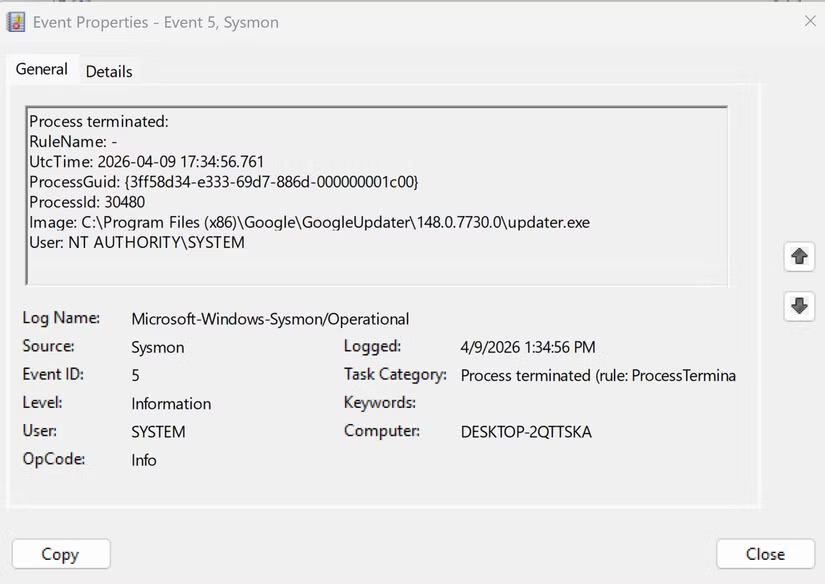
What Sysmon actually gives you is visibility into what your PC is doing behind the scenes, not just a snapshot, but a detailed history. It tracks every process that starts, including how it was launched, logs the network connections apps make in the background, and records file and system changes. That means you’re not guessing anymore when something feels off, you can actually see what happened and when.
In real-world terms, this is where it becomes useful. If your PC suddenly feels slower, you can spot a process that keeps launching in the background. If your browser starts acting strange, you can see if something unexpected is reaching out to the internet. If a file changes or disappears, you have a record of when that happened. It’s not as simple as Task Manager, but it answers a different question: not just what’s running right now, but what actually happened on your system.
Who should actually use Sysmon
This isn’t for everyone, but it’s more useful than you think

Sysmon isn’t something most casual Windows users will ever need, and that’s okay. If all you want is a faster PC or a cleaner desktop, tools like Task Manager already get you most of the way there.
Where Sysmon starts to make sense is when you want to understand what’s actually happening under the surface. If you’ve ever dealt with random slowdowns, apps behaving strangely, or network activity you couldn’t explain, this is the kind of Windows troubleshooting tool that can give you real answers. It’s especially useful for power users, anyone troubleshooting persistent issues, or just people who want more visibility into their system without relying on third-party tools.
Sysmon isn’t trying to replace the tools you already use, it’s showing you what they miss. Once it’s running, you’re no longer guessing about what your system is doing, you’re looking at a real record of it. This isn’t about what’s running right now, it’s about what already happened.
That’s the bigger shift. Windows keeps getting deeper, even if most of those capabilities stay hidden. Sysmon is one of the clearest examples of that. It takes a little effort to set up, but what you get in return is a level of visibility most users never realize their PC is capable of.
Source: Read Full Article