









When we think of the Clock app, we see it as nothing more than a way to check the time or set alarms. But beyond its obvious purpose, it includes a hidden feature, Focused Sessions, that can help you stay focused. If you’ve missed this feature until now, try it out and work with fewer distractions.
An overview of the Focus Sessions feature
Focus Sessions isn’t just another timer
Focus Sessions automatically turn on Do Not Disturb, silencing notifications so you can work without interruptions. You can set a timer for a dedicated focus period, during which distractions are blocked, and the feature automatically turns off once the session ends. It also notifies you with an alarm once the session is complete.
It also includes planned breaks to let you rest as you progress toward your daily goals. The number of breaks depends on the length of your focus session. For example, you might get two breaks during a one-and-a-half-hour session, with more added for longer sessions. You can also customize break durations—or skip them entirely if you prefer working in one session.
What I like most about Focus Sessions is its seamless integration with Microsoft To Do, which keeps your daily task list visible and lets you check off items without leaving the Clock app. It also integrates with Spotify, letting you listen to music tailored for focus sessions or your own custom playlists.
Overall, whether you’re a student, an office worker, or working on personal projects, Focus Sessions helps you build better focus habits without relying on third-party apps.
Why you should start using Focus Sessions
Because distractions aren’t getting any smaller
Every notification we receive pulls our attention away from the task at hand, and this small interruption can throw us off track. By breaking work into timed, focused intervals, Focus Sessions make it easier to stay mentally sharp. The feature is based on the Pomodoro technique, which shows that the brain works best in short, structured bursts of focus.
Research suggests that sustained focus declines during long, uninterrupted work periods, while intentional breaks help reset attention and reduce mental fatigue.
How to use the Focus Sessions feature in the Clock app
A few taps and your focus is locked in
To use this feature, open the Clock app and go to the “Focus Sessions” tab in the left sidebar. Here, you can set a timer for your focused session, specifying the duration in minutes. As you set the duration, you’ll see how many breaks are scheduled during your session. If you prefer to skip breaks, simply check the “Skip Breaks” box.
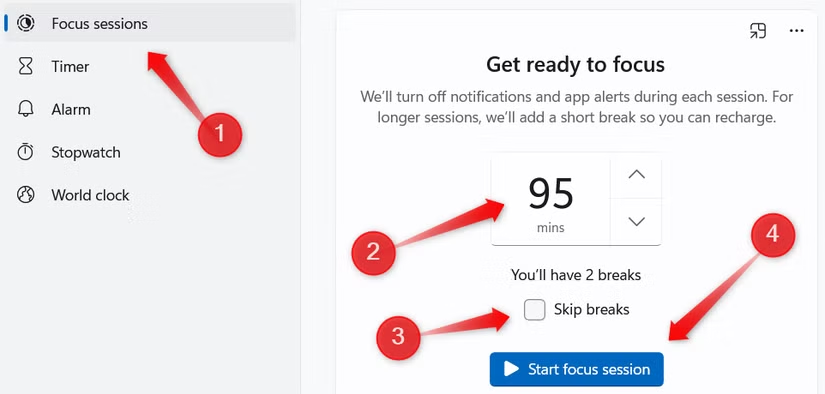
Once everything is configured, click “Start Focus Session” to begin, allowing you to work without interruptions. When the timer ends, Focus Sessions automatically turn off, letting notifications resume.
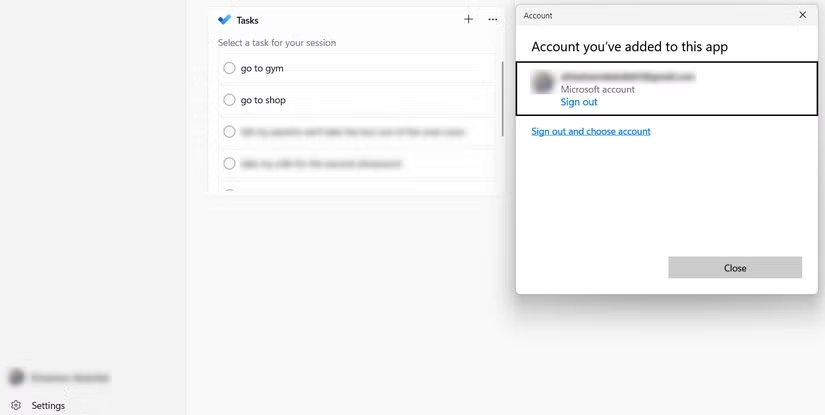
To use integrations like Microsoft To Do, click “Sign In” in the bottom-left corner and log in to your Microsoft account. The app will automatically import your tasks for the day, allowing you to check them off as you complete them.
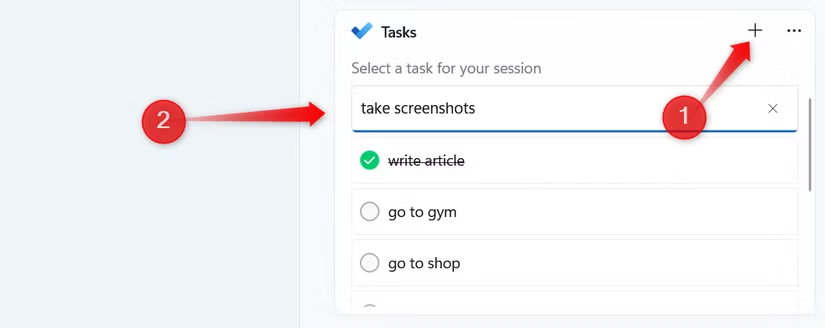
You can also add new tasks directly in the app and use individual tasks for your focus sessions. To do this, simply click the plus icon in the Tasks box and add your task, just as you would in your daily agenda.
On the right panel of the app, you’ll find a playlist with Focus music suggestions that you can play while working on your tasks. You can also choose to use your own playlist.
The panel also provides a dedicated space to track your daily progress and see how long you’ve stayed focused. You can set a daily focus goal, view how long you were focused yesterday, and track your streak if you consistently meet your goals over multiple days. This feature alone can help you stay motivated to stick to your routine.

To edit your daily goal, click the pencil icon in the top-right corner of the Daily Progress box. From there, you can set your goal in hours, decide when the app should clear daily progress and completed tasks, and choose whether weekends should be included. Once everything is configured, click “Save” to apply your settings.
How to customize the Focus Sessions feature
Because one size never fits all
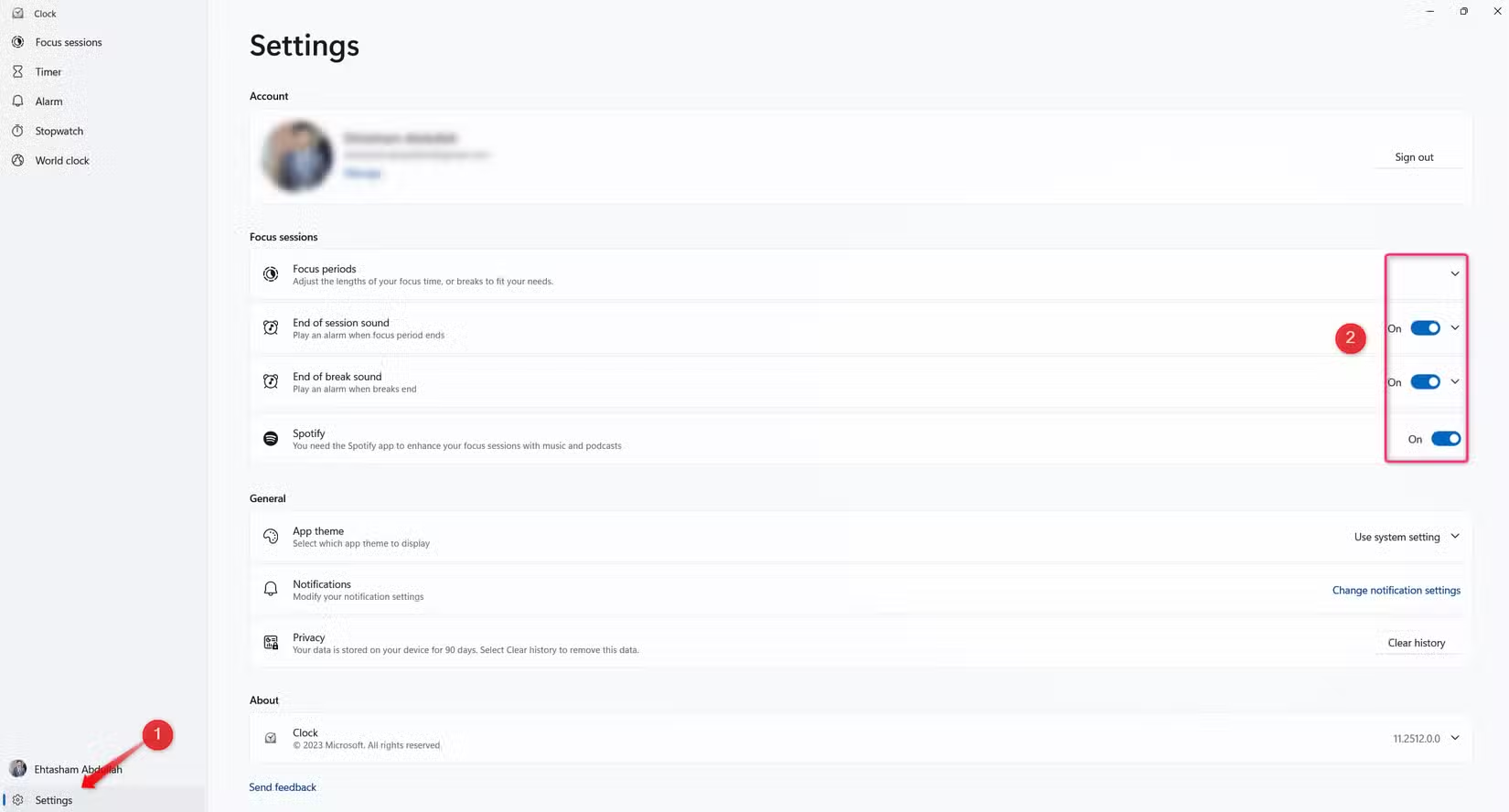
You can tailor Focus Sessions in the Windows Clock app to fit your workflow. This includes setting the duration of each focus period, adjusting break lengths, choosing whether the app should play an alarm at the end of a session or break, and enabling or disabling integrations with Spotify and Microsoft To Do.
To customize these settings, click the “Settings” option in the bottom-left corner of the app and toggle the options on or off as needed.
Focus Sessions is one of Windows’ most overlooked productivity features, and many users don’t even realize it exists. Once you make it part of your routine, you’ll quickly notice how much more focused and productive your workdays become. If you haven’t tried it yet, it’s definitely worth a go—it could easily replace the productivity apps you’re paying for every month.
Source: Read Full Article