










Presence detection is one of the most useful features you can use in your smart home. Though there are plenty of modern options for detecting presence in Home Assistant, Wi-Fi can be a reliable old fallback that works a treat in detecting specific devices in your home.
Why bother doing this?
There are many ways to use presence detection in Home Assistant, with the easiest being the Home Assistant companion apps for iPhone and Android. To use this, your device needs to report where you are back to your Home Assistant server, which requires some sort of remote connection (like Home Assistant Cloud).
But using Wi-Fi to detect presence is a little different. Instead of getting the device that we’re tracking to do the reporting, we’re using the home router to check for the presence of that device. We can then use that information or a change in state (like a device appearing or disappearing) to trigger automations.
The biggest upside of doing this is that you can use it to track the presence of any device on your network that doesn’t have a native Home Assistant integration. You can use Wi-Fi presence detection to detect any Wi-Fi device, like media players or handheld consoles, in addition to smartphones, laptops, tablets, and so on.

I find Home Assistant’s mobile presence detection a little frustrating. Since I don’t have Home Assistant Cloud, the server doesn’t receive updates from connected devices when I’m outside of the house. Rather than settling on an “Unknown” state, Home Assistant just assumes people are at home even after several hours of inactivity.
It can also be skewed by the presence of other devices, like if you’ve added your computer to Home Assistant and marked it as belonging to a particular user.
Using Wi-Fi provides a slightly laggy but (in my experience) dependable means of implementing simple presence detection. You can even assign a Wi-Fi-dependent entity to a particular user in Home Assistant.
The downside is that Wi-Fi can be a bit slow to respond; you’ll need to have some means of integrating your router (more on that shortly), and it’s possible that devices will drop off the network and trigger unintended results.
Integrating your router into Home Assistant
The “hardest” part of doing this is finding an integration that allows you to add your router to Home Assistant. The good news is that if you’re using a router from a major brand (and it’s not an antique), there’s probably something out there you can use.
Many router brands like Ubiquiti (Unifi) and Netgear already have integrations you can add under Settings > Devices & services using the “Add integration” button and searching. The same is true for alternative firmware like OpenWrt and DD-WRT.
I have a TP-Link router, so I did a quick search for an integration I could use and stumbled upon a custom integration. This required that I add the repository to the Home Assistant Community Store, download the integration, reboot Home Assistant, and then add it as I would any other integration.
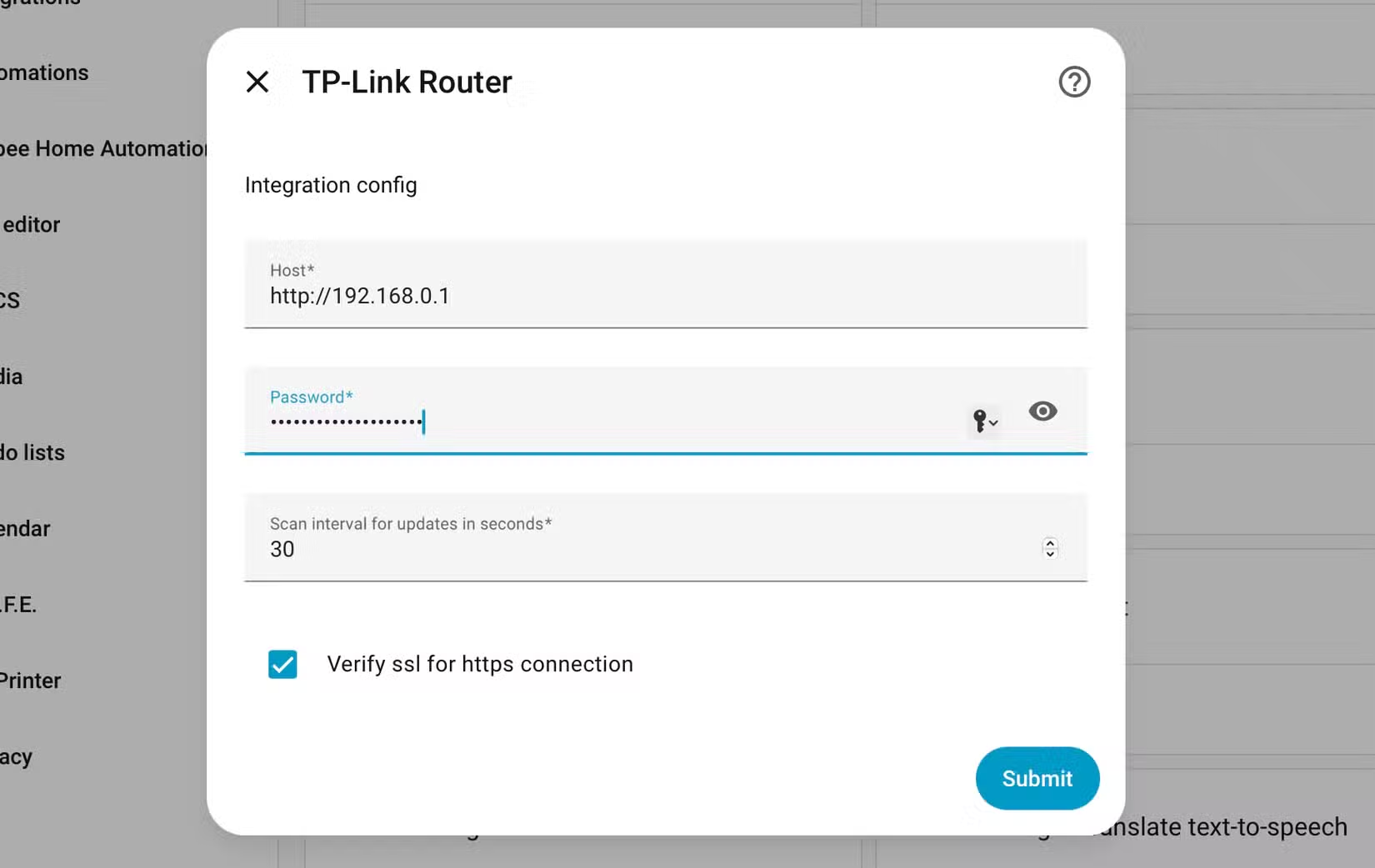
Setup only asked for my router’s IP address and admin password, after which setup was a breeze. Once complete, I had a bunch of grouped entities (relating to the router) and a bunch of ungrouped entities for devices connected to my network. I can see them all by visiting Settings > Devices & services > Integrations and clicking on “TP-Link Router” and then clicking the number of entities.
These entities have Home and Away states that you can use to tell whether someone is at home or whether a device has left or joined the network.
Assign Wi-Fi device presence to a person
Doing this allows me to use the presence of a device on your Wi-Fi network to detect whether a person is at home or not. Be aware that this doesn’t work with zones, so you won’t be able to tell where someone is, just whether they’re at home or not.
This is useful if you don’t pay for Home Assistant Cloud but still want presence-specific automations to run, or if you want to use a device that isn’t reporting its status to Home Assistant to signal whether someone is home or not.
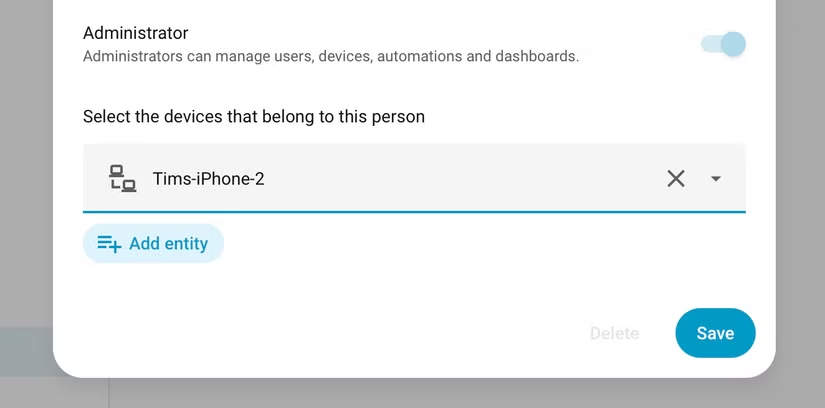
To do this, head to Settings > People and select the person. Under “Select the devices that belong to this person,” add the entity as it appears in your router’s integration. Clear all others to avoid false positives, then hit Save.
Using device presence in automations
You can also use these entities to trigger automations or as conditions within automations. To use a device as a trigger, you’ll need to rely on the entity’s state. To do this, create a new automation under Settings > Automations & scenes using the “Create automation” button.
Click “Add trigger” and choose “Entity” followed by “State.” Now select the entity you want to use and the trigger. If you want to trigger something when you arrive home, you’d pick “Away” in the from field and “Home” in the to field.
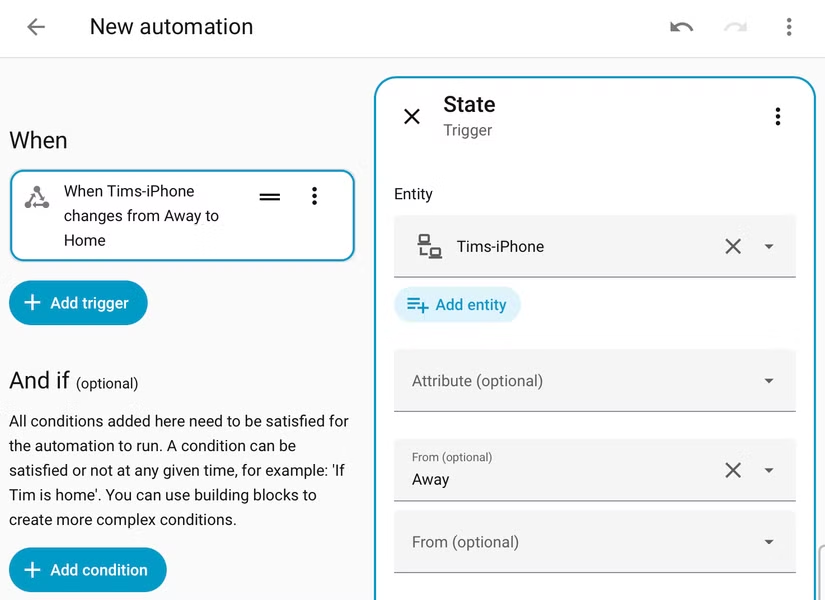
You can use all manner of other triggers in your automations with your router added to Home Assistant, but those are a bit beyond the scope of this article.
Using Wi-Fi to detect presence in Home Assistant is an old trick, but it works. I’m using it for simple home and away detection, to avoid sending my partner alerts to empty the washing machine when they’re not at home.
Want accurate, per-room presence detection? Buy a bunch of ESP32s and go to town.
Source: Read Full Article