










I’ve never been satisfied with the media player built into Windows, so I went searching for a replacement. After sifting through an enormous number of free media players on the web, and testing more than a dozen, I finally found one that ticked all of my boxes.
It has become stagnant
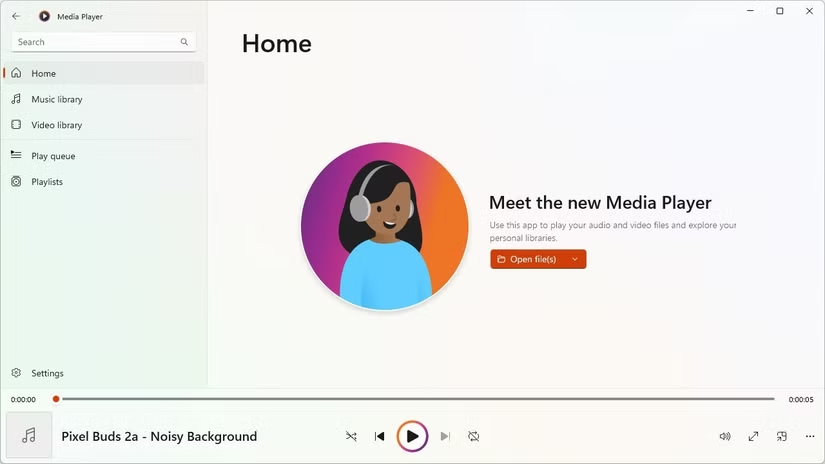
Microsoft has released countless different versions of the Windows Media Player over the years. For a long time, it was actually called “Windows Media Player,” though with the release of Windows 11, it was simply rebranded “Media Player.”
Despite the 2022 refresh to go with Windows 11, Media Player feels much the same as it always has.
The only real improvement was greater support for keyboard-only use, which is helpful for people that use certain kinds of accessibility features and anyone that likes using their keyboard instead of a mouse.
For a no-frills, default media player, that is fine. However, I wanted and needed something a bit more capable.
It has no flexibility
One of Media Player’s major faults is its inflexibility. Many, if not most, third-party media apps allow you to tune playback. You can adjust filters for video or audio, choose different rendering engines, tweak audio output, apply filters, and more.
Media Player has almost none of that—you get an equalizer, that’s it.
If you’re the type of person that likes to tweak things, or you find yourself in a situation where tweaking something is necessary, you’re completely out of luck.
It isn’t customizable
Though cosmetic customization isn’t as important as functional flexibility in a media player, Windows Media Player (2022) isn’t winning any points in either department.
You get a pre-defined set of buttons in a specific order. You can swap it between light and dark themes.
If you want to do anything more complex than that, you need a different program.
I wanted everything Media Player isn’t

There are dozens of good replacements for Media Player out there, including the ever-popular VLC. Some of them are expensive, proprietary programs, but most of them are free and open source.
Since I won’t be playing back Blu-ray discs, none of the proprietary options are necessary for my purposes.
I needed four things out of a media player:
- Support for a huge range of file formats out of the box. Media Player isn’t the worst here, so any replacement would need to be as good or better.
- It should be flexible. If I need to apply some kind of audio or video filter, it should be built-in. The ability to add external plugins for enhanced functionality would be a bonus.
- It should be easy to customize. I don’t need to massively rework a user interface, but the ability to tweak how the interface looks and acts is a plus.
- It should be lightweight.
I tested more than 10 different open-source players, and several of them were excellent. However, Media Player Classic – Black Edition (MPC-BE) stood out from the crowd.
MPC-BE is open-source and powerful
It has everything I want in a media player
When I first opened MPC-BE, the first thing that struck me was the interface. It was dark, easy on the eyes, and there was a helpful mix of options available within a few menu items—a significant improvement over Windows 11’s native media player.
Despite the straight-forward user interface, under the hood, MPC-BE is an exceptionally capable media player. I tested every strange video file format I could find, and it played them all back instantly without requiring any intervention on my part, which is a huge improvement over Media Player.
It also supports hardware acceleration—a must-have in any modern media player—which is what allows your graphics card to handle decoding video files. It ensures that you can play high resolution video without bogging down your CPU or turning your video into a laggy, stuttering mess.
It is a customization king
However capable MPC-BE is out of the box, it is even better once you start digging into the advanced settings and customization options it has. You can apply filters to modify the brightness, contrast, hue, and saturation, change your audio or video renderer, or adjust any number of settings related to sound processing. In the past, I’ve really appreciated the ability to swap the video renderer to MadVR, since it can fix the washed-out effect you experience when playing back HDR content on an SDR display.
MPC-BE includes a range of built-in filters to handle various file formats and hardware configurations, and can even accept external filters if the included ones don’t do what you need.
You can also make changes to the user interface, keyboard shortcuts, and more.
Find programs you actually like
MPC-BE isn’t the only good media player that I tested. VLC is an excellent option if you’re looking for something that is free and open-source. Mpv and PotPlayer are both more minimalist options, if that is closer to what you’re looking for.
Source: Read Full Article