










It feels cliché to say at this point, but cameras are a big part of the appeal of Google Pixel phones. I’ve been using Pixel phones for many years, and I’ve become very familiar with the Camera app. With just a few toggles, I have it perfectly set up to my liking.
The Camera app is one of the main reasons why I like Pixel phones so much. As you’ll see, there are only a few settings to tweak to improve upon an already great experience. It’s not much, but every bit counts.

Enable the viewfinder grid
Makes it easier to frame photos
The one feature that always gets me to open the Camera settings for the first time is the grid. Those thin lines are incredibly helpful when taking photos. I’m not a photographer by any means, but I like to be able to see if I have something centered in the frame. It saves me time from cropping it later.
Google gives you three grids to choose from: 3 x 3, 4 x 4, and the Golden ratio. For me, the 3 x 3 grid is enough, but you might prefer one of the others. Open the Camera settings and tap “Grid type.”
Don’t allow Camera to access device location
A little less tracking is never a bad thing
While I’m not generally super concerned with my phone “tracking” me, I don’t love the idea of a precise location being attached to every photo and video I take. Thankfully, Android permissions make this very easy to avoid.
The very first thing you see when opening the Camera on a Pixel phone is a prompt asking you to “Allow Camera to access this device’s location?” So, technically, this is the very first thing I do when opening the Camera on a Pixel phone: tap “Don’t allow.” If you miss this, you can simply open the Camera settings and toggle off “Save location.”
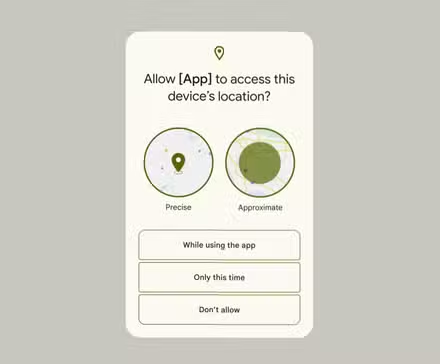
What Are “Precise” and “Approximate” Locations on Android?
For a long time, granting an app permission to access your location meant one thing—your exact location. Nowadays, Android gives you two choices—“Precise” and “Approximate.” There is a big difference between the two options.
Disable camera sounds
Shhhhhhh
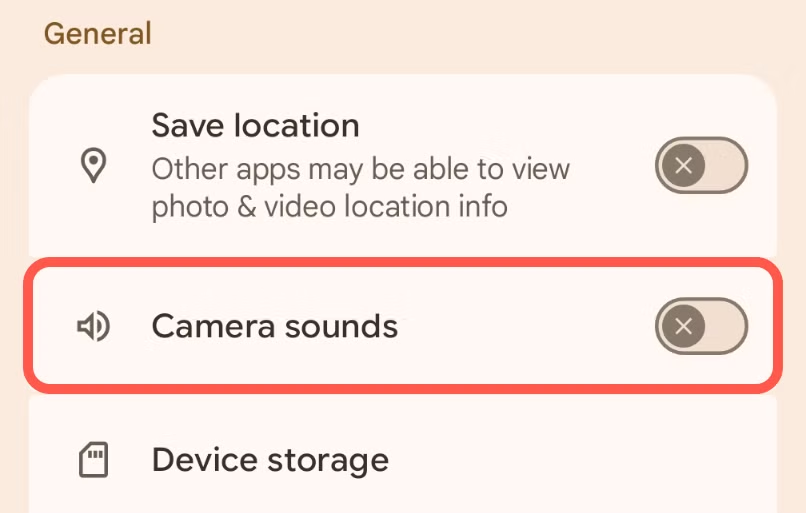
Immediately underneath the “Save location” toggle is the second setting I always change: “Camera sounds.” Personally, I just don’t like it when apps make sounds, and that includes the camera. Hearing a fake shutter click when I take a photo isn’t helpful. It’s useful for the timer countdown, but I very rarely use that.

8/10
- Brand
-
Google
- SoC
-
Google Tensor G5
Turn on “Quick Access” controls
Easily make adjustments on the fly
As I said, I’m not a photographer, but I do have some sense of what makes a good photo. Lighting is obviously an important part of that, and the Pixel camera has adjustments for Shadows, Exposure, and White Balance—plus Brightness, Shutter Speed, and ISO on “Pro” models.
These controls can be found from the tuning slider icon in the bottom corner, but I always enable “Quick Access” control for, well, quicker access. This puts sliders for white balance, brightness/exposure, and shadows directly on the viewfinder. It’s much easier to adjust the look of your shot in the moment.
Disable “Audio Zoom” for videos
A neat idea that doesn’t work that well in real life
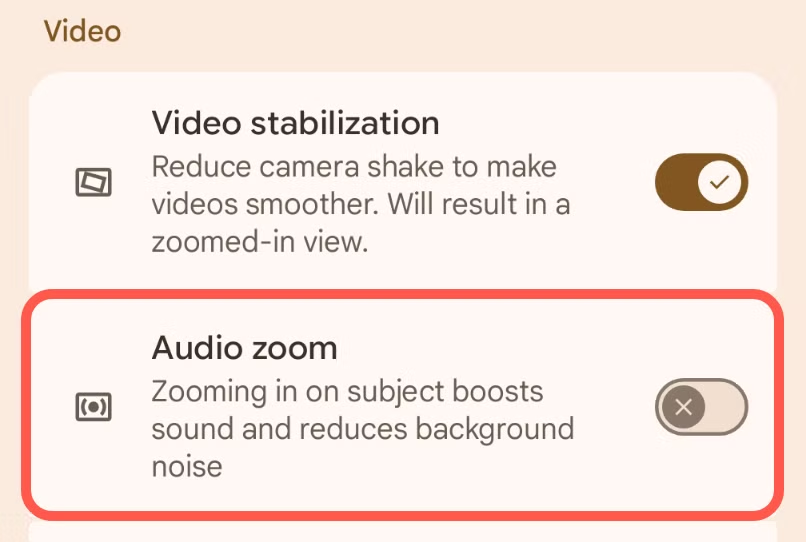
Admittedly, I don’t take many videos with my phone. However, after reading a colleague’s article about Audio Zoom, it became a feature that I now turn off. It sounds like it would enhance the audio for whatever subject you’re focused on, but it tends to create more problems than it solves.
Rather than enhancing audio from a specific source, Audio Zoom reduces the overall noise. It’s an interesting concept, but I don’t want my phone removing anything from my videos. Enhancing is one thing, subtracting is another. Audio Zoom is enabled by default on the Pixel 5a and later.
I love the Pixel Camera software
Thankfully, there aren’t many things that need tweaking in the Pixel Camera app for my purposes. I appreciate that the main interface is pretty simple, but there are plenty of options behind the scenes. Pixel phones are praised for their excellent cameras, and software plays a big part in that.
9 Lesser Known Pixel Camera Features You Might Be Ignoring
Pixel phones are renowned for their excellent cameras. And though the Pixel Camera app isn’t as feature-packed as the iPhone or Samsung Galaxy equivalents, it can do a few more tricks than you might realize. Pixel Camera’s stripped-back UI means it has a lot of small but useful features that aren’t immediately obvious. Mastering some of these features will improve your photography and help you take better shots in the future.
Source: Read Full Article