






Long-time Android users know that there is a hidden set of developer settings where you can customize aspects of your phone not intended for the wider public. Turns out the same is true about Android Auto—sort of. Just like with your Android phone, there is a hidden page with car-related options that aren’t intended for the general populace, but it’s not as deep nor nearly as good.
How to enable Android Auto’s hidden developer menu
Before you do, temper your expectations
You won’t find the Android Auto developer menu by hunting around on the screen in your car. Instead, pull out your phone and open Android Auto settings there. On a Samsung device, you can do this by going to Settings > Connected Devices > Android Auto. On the Google Pixel 10a I have on hand, you would instead go to Settings > Connected devices > Connection preferences > Android Auto.
Here is where the cool trick comes in (and stop me if this sounds familiar). Scroll down until you see Version and then tap this ten times, at which point you will receive a prompt letting you know that Developer Mode has been enabled. Tap the overflow menu icon in the top right, and you will now see developer options.
Android Auto’s developer menu isn’t nearly as exciting as a developer menu for your Android phone. Most of the options you’ve just unlocked aren’t going to fundamentally change what you can do with your car, but there are a few minor conveniences I’d like to highlight.
This is the easiest way to share Android Auto screenshots
You can record video and audio as well
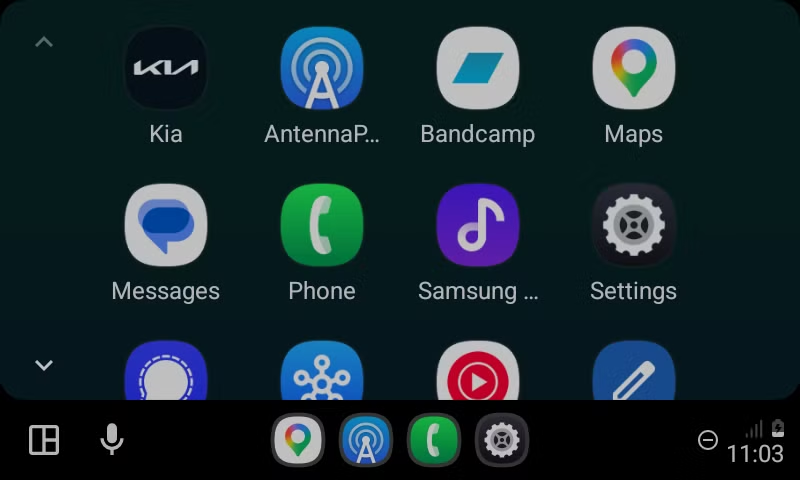
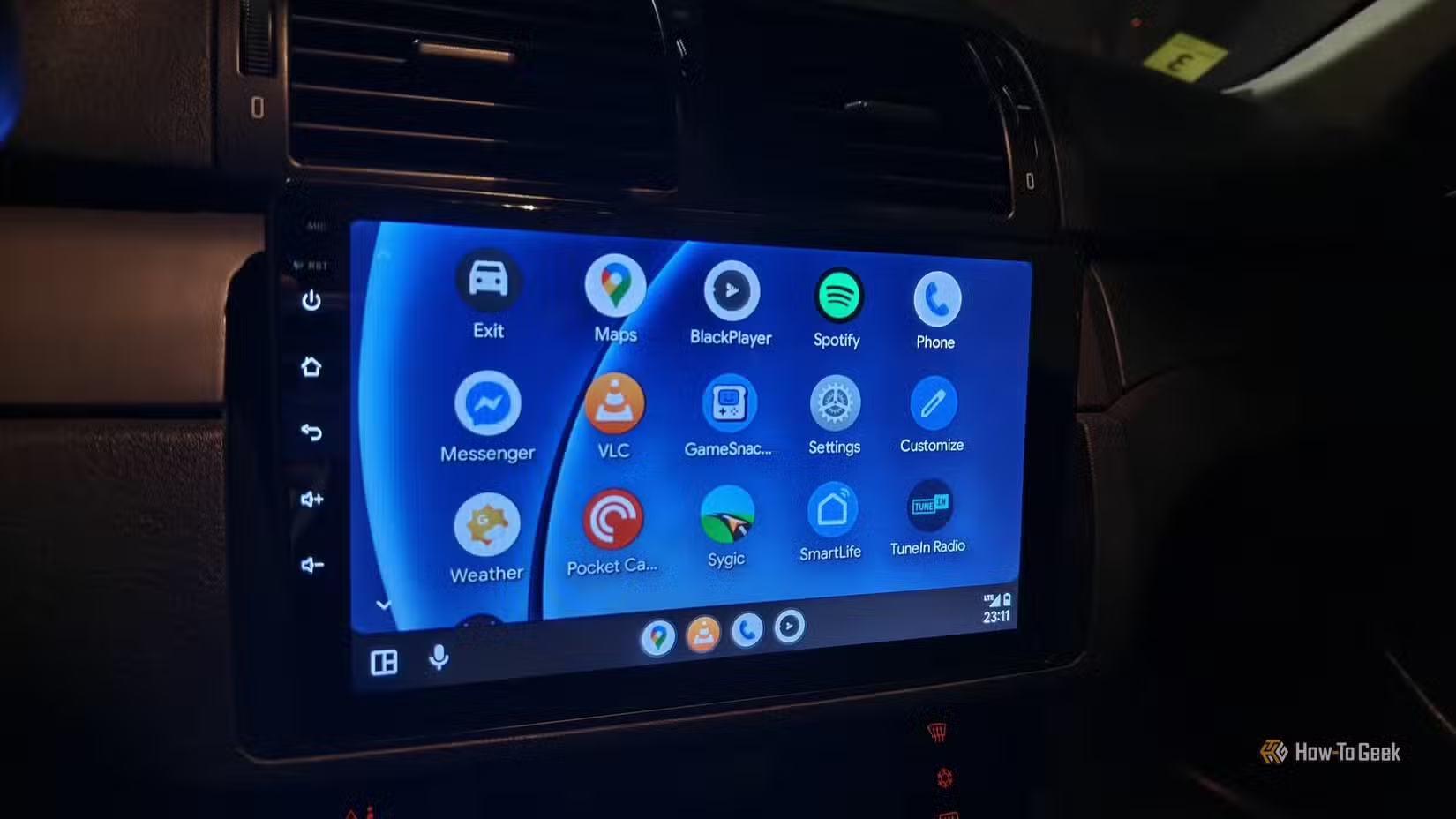
I’ll admit most people do not need to regularly take screenshots like I do, given that it’s a key part of my job description. That said, just as we take screenshots of our phone to help us remember things, there are occasionally times when a screenshot of a map on Android Auto or the currently playing song could come in handy. After all, I don’t know about you, but I find taking a photo of my car’s dashboard to be too much work for too poor a result. A screenshot is much clearer.
The Android Auto developer option has a “Share screenshot now” button that will immediately take what’s on your Android Auto screen and share it to any of the apps populating your share menu. I took a screenshot and shared it with myself via Signal. That is how I captured the screenshot above.
There are also boxes you can check for recording video and audio. While this is more niche, I can see it coming in handy if you’re trying to toss a how-to guide on YouTube.
You can disable wireless Android Auto
If your wireless Android Auto connection is shaky, tell it to stop
Wireless Android Auto sounds like a genuine convenience, and if your connection is rock solid, then it is! After you hop in your car, Android Auto appears on your screen, ending your need to hunt around for a USB cable or reach into your pocket or bag for your phone.
If your wireless connection is unstable, well, then it’s a headache. You want to use the software, but it drops too often to be of any use, creating a huge disruption while driving. Wireless Android Auto can also kick in before you plug in a more stable wired connection.
If you’re tired of this whole song and dance, you can uncheck the wireless Android Auto box and only stick to a solid USB connection from now on. Since my car doesn’t have wireless Android Auto, this is the life I already live. Instead, I’m in the opposite boat. I’m considering purchasing a wireless Android Auto adapter in order to see what this cable-free driving life is all about.
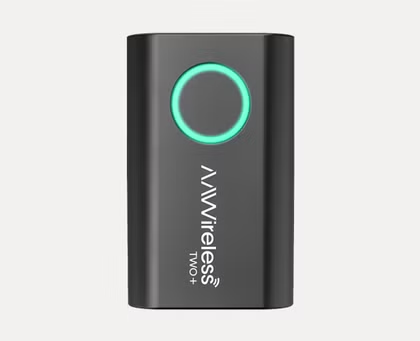
- Type
-
Android Auto & Apple Carplay adapter
- What’s Included
-
Adapter, USB-C to USB-A cable
Easily add wireless Android Auto or CarPlay to your vehicle with this capable dongle that works with both platforms.
Install apps from unknown sources.
What you need for Android Auto apps that aren’t in the Play Store
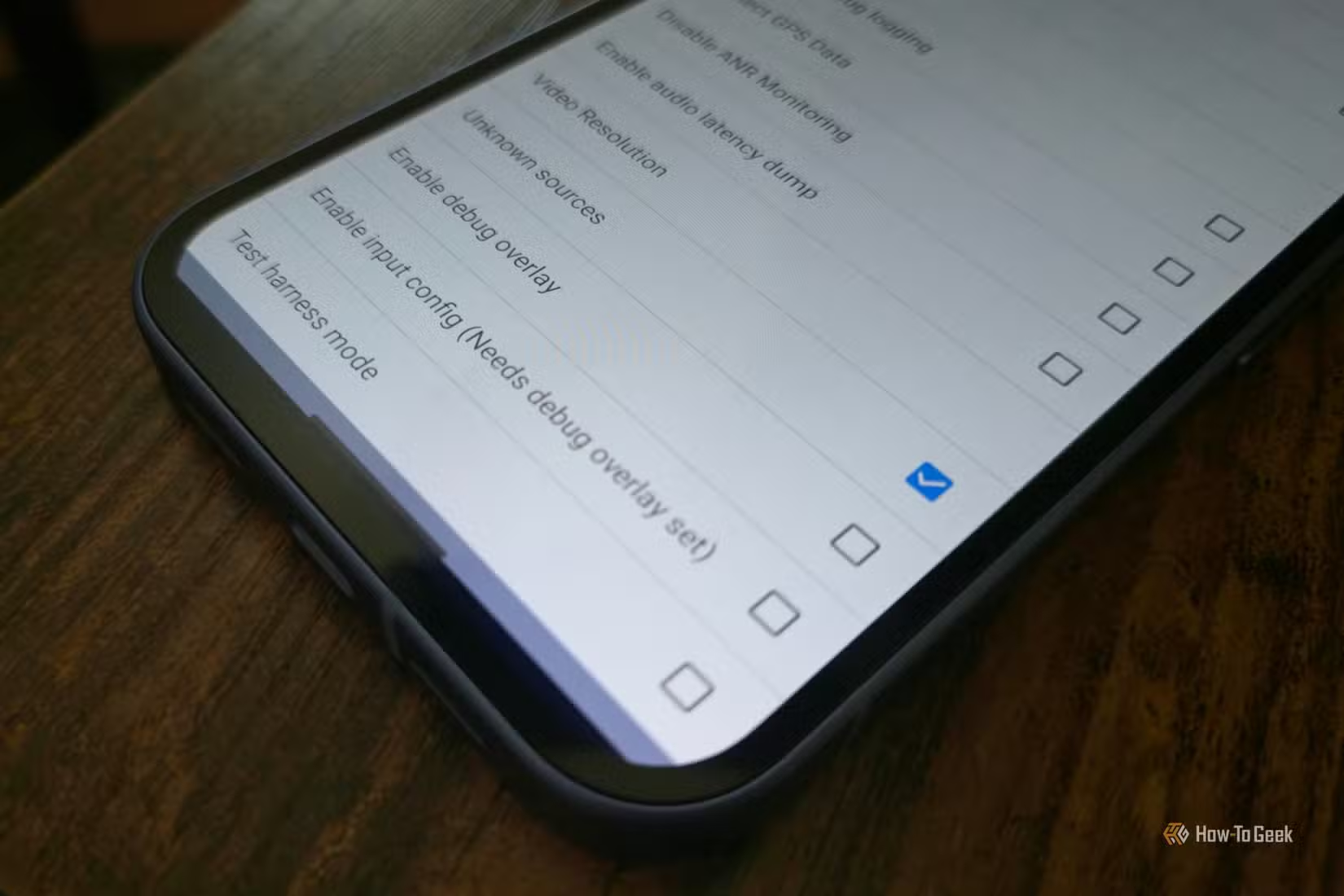
You can select the box next to “Unknown sources” to install apps from sources other than the Play Store. This option sounds like it’s going to unlock more doors for you than it actually will. In practice, there aren’t many Android Auto apps that are exclusively available outside the Play Store. This is in large part because Android Auto depends on Google services in order to function in the first place.
If you have a phone with Android Auto capability, chances are you also have the Play Store. If you have a de-Googled phone, this often means losing out on Android Auto. But if you do find yourself where you want to run something on Android Auto and the Play Store doesn’t have what you need, the option is there.
Don’t expect your Android Auto experience to change
Frankly, that’s about it. Android Auto’s developer options are small enough to fit on a single screen. I’ve tried playing with the option to change my video resolution, but that doesn’t change anything on my car’s screen no matter what I set it to—I can’t suddenly make my low-resolution image look crisper. Maybe your experience will be different, so check out that one as well.
Source: Read Full Article