









The Windows user interface is very mouse-oriented, but if you’re willing to learn a few shortcuts, the keyboard can save you time and effort. These are some of the shortcuts I use daily.
Move around File Explorer (Alt+Arrow Keys)
I don’t use my mouse to navigate half the time
The most basic thing you need to do in any application is navigate, and for that, you hold Alt and then tap an arrow key.
To go up one folder, hold the Alt key and press the Up Arrow. So, if you were working in “C:\ExampleFolder\Folder1,” pressing Alt+Up Arrow would change your directory to “C:\Examplefolder\.”
Pressing Alt+Left Arrow or Alt+Right Arrow works exactly like the backwards and forwards buttons on the user interface. I use them constantly.
Pressing Alt+Left Arrow brings you back to your previous directory—in this case Folder1. If you have been browsing multiple directories, you can keep pressing Alt+Left Arrow to go all the way back to the first folder you opened.
Alt+Right Arrow does the opposite. If I accidentally go back too many steps by pressing Alt+Left Arrow, I just press Alt+Right Arrow to go forward one step.
Find out where you’re at
An important hotkey if you’re writing a script or moving a file
Often times, you’ll find that you’re ten folders deep, and you no longer remember the exact path to the folder you’re in.
That information can be important, since you’ll often need to paste it into another program or even just note where a file is stored.
There are two ways I get the current directory I’m in. The first is by pressing Ctrl+L, which selects the address bar and the current path to your directory.
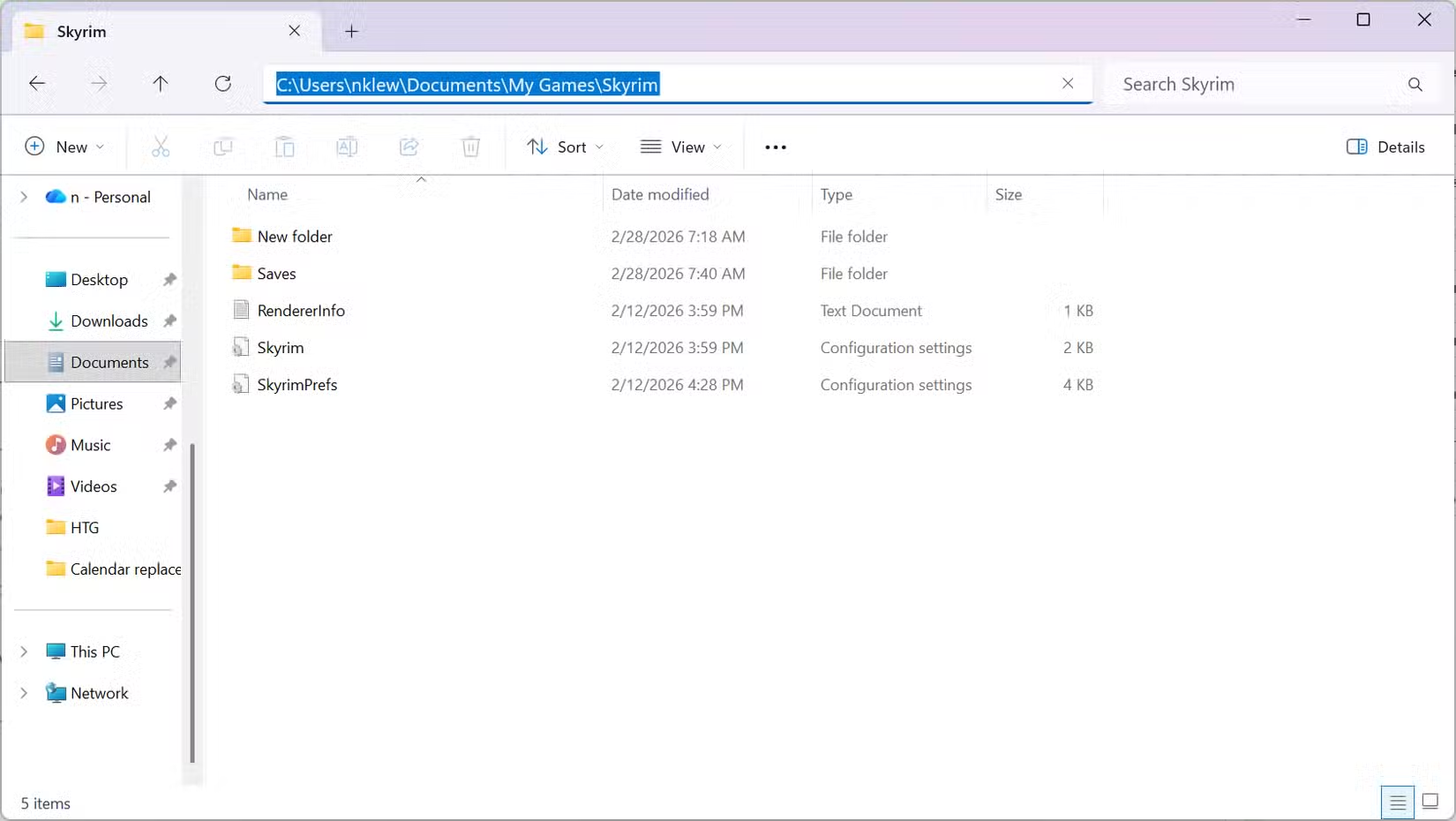
From there, you can just press Ctrl+C to copy the path and then use it however you need it, or enter a new path to wherever it is you’d like to go.
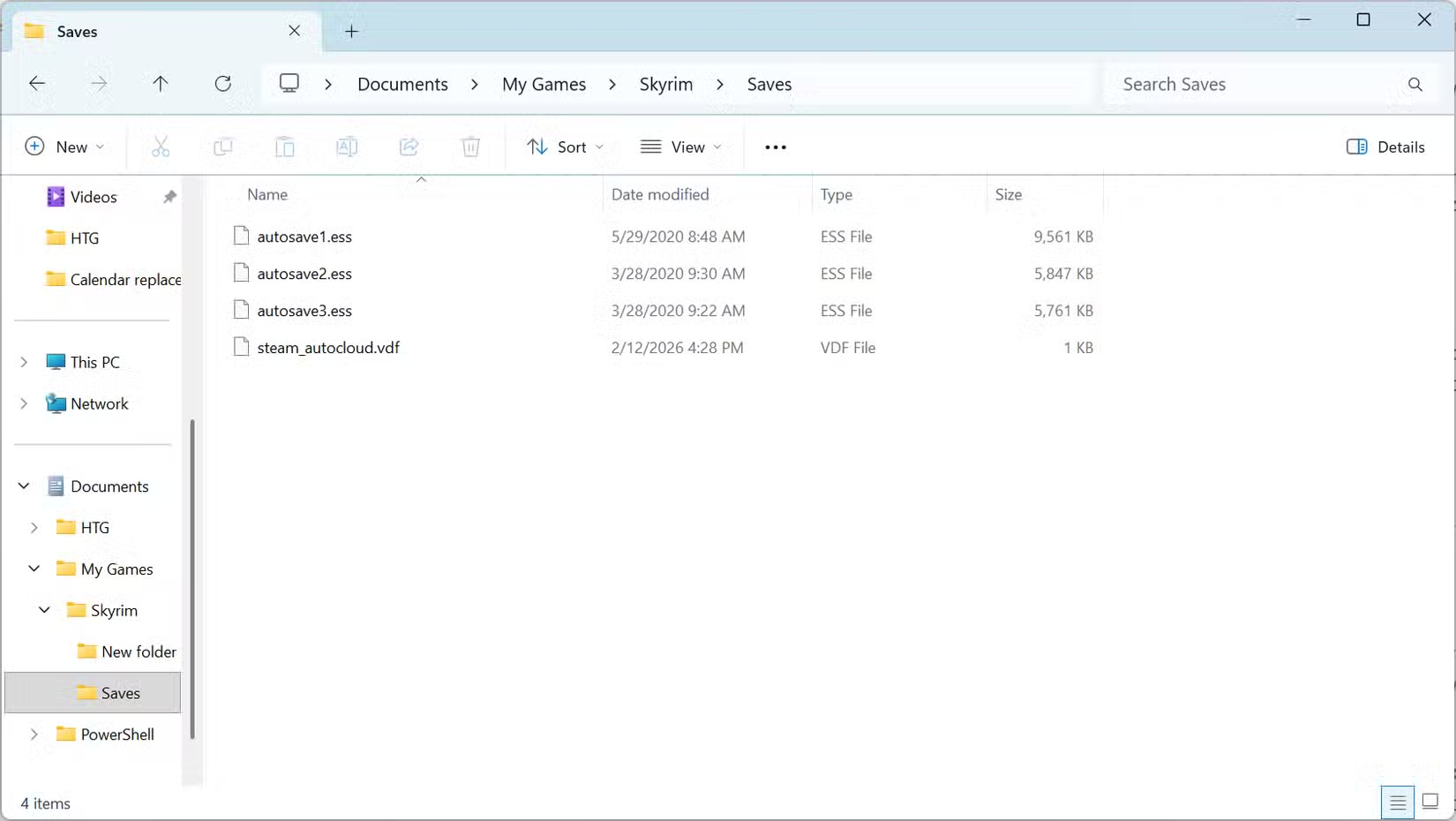
Alternatively, you can press Ctrl+Shift+E to expand the folder hierarchy view on the left-hand side of your screen. It won’t let you copy your path, but it does let you know what other folders are available to you. If you’re using the arrow keys to navigate, it can be helpful information.
Create or delete new folders (Ctrl+Shift+N)
Faster than right-clicking when you need to type in a folder name
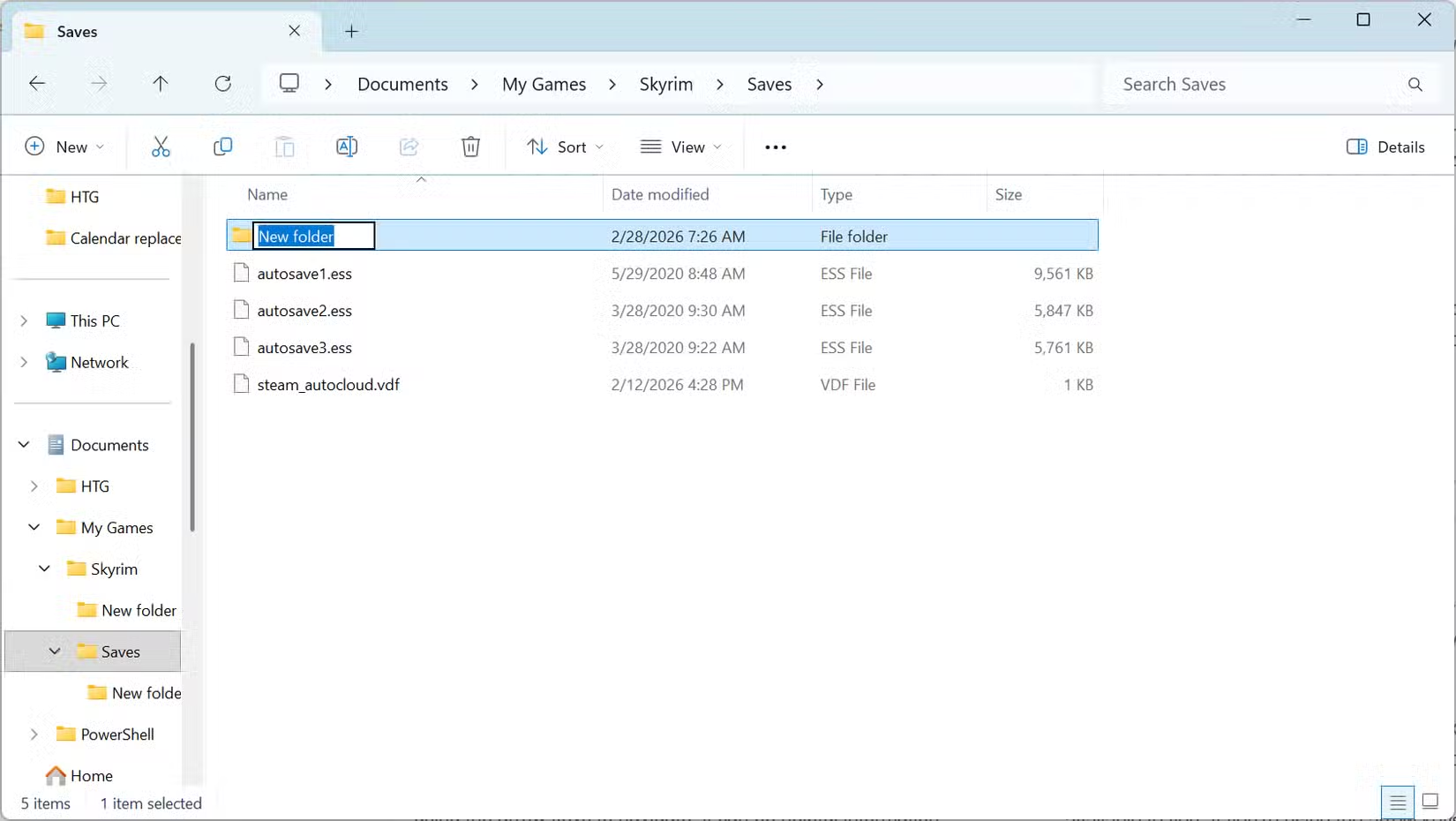
One of the most basic things you can do in any File Explorer-like app is create new folders. To do so, press Ctrl+Shift+N, type the name of your new folder, then press Enter.
Alternatively, if you want to delete something, just select it using the Tab key, then tap the Delete key.
Rename files and folders (F2)
Once you’re in a directory working with files and folders, you need to be able to manipulate them. One of the shortcuts I find myself reaching for the most is the Rename function, since I’ll often accidentally create a folder named “New Folder” rather than naming it appropriately.
To rename a folder or file, press the Tab key until you’re in the file and folder list, use the Arrow Keys to select the specific file, then tap F2 to rename it.
If you accidentally try to rename the wrong file or folder, press the Escape key to cancel the operation without changing anything.
Check out the properties (Alt+Enter)
When you need to know about a file or folder
I frequently need the details of files and folders I’m working with, and even when I’m using the mouse, I’ll often use a hotkey to view the Properties window instead.
To view the properties of a file or folder, select it, then press Alt+Enter to open the Properties window.
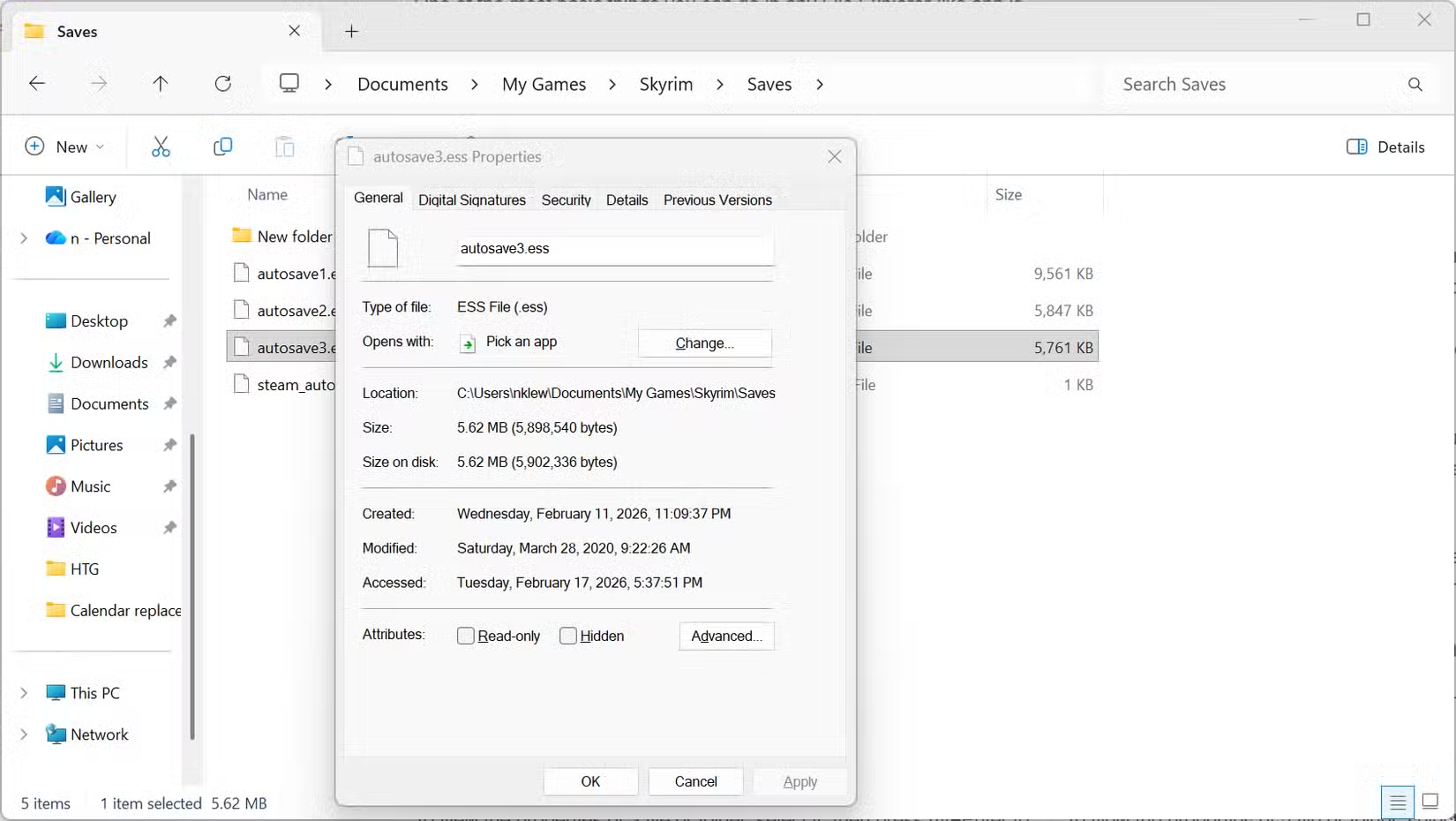
You can press Tab to select different areas of the window, then use the arrow keys to navigate through items in those areas.
Change the size of icons (Ctrl+Alt+ or Ctrl+Alt-)
Sometimes a better view of thumbnails is convenient
Windows 11 likes to waste space in the user interface, and I frequently find myself resizing as I go.
The easiest way to change the size of items in File Explorer is to hold Ctrl and scroll the mouse wheel, but if you’re only using the keyboard, you can press and hold Ctrl+Alt++ to zoom in or Ctrl+Alt+- to zoom out.
I get the most use out of this when I need to quickly change the size of thumbnail previews when working with images.
Search for files or folders
No manually looking through files or folders
My downloads folder usually contains a few thousand files and folders at any given time, since I don’t organize it. I have an unfortunate number of folders that are like that.
The shortcut I use more than any other is Ctrl+F, which selects the search bar so I can search via a file or folder name rather than scrolling through a gigantic mess of files.
You can customize every shortcut in File Explorer
Keyboard-based navigation feels a bit like a relic, but in many cases, it can be significantly faster than reaching for your mouse, especially if you already have both hands on the keyboard. If the default navigation shortcuts in File Explorer don’t work for you, you can always use Keyboard Manager from PowerToys to change them to your liking.
Source: Read Full Article