









Windows 11 looks sleek and modern, but it still suffers from usability and quality-of-life shortcomings that make running it daily a bit tedious. Luckily, several developers have created free programs that make up for those deficits.
EarTrumpet fixes Windows audio instantly
Per-app volume control at your fingertip
If you’ve ever tried to adjust audio levels in Windows, you’ve probably opened the volume mixer, moved a slider, closed it, and repeated that sequence multiple times.
Not only is the default volume mixer a little clunky to use, accessing it requires either pressing Ctrl+Win+V or clicking one menu, scrolling, and then opening another.
EarTrumpet places a small icon in the system tray and presents per-application sliders with a single click. It integrates with Windows but isn’t part of the operating system, so its behavior can vary depending on your drivers and hardware, and some programs may integrate fully with the tool.
In practice, if you frequently need to adjust individual application volumes—say a game while listening to music—EarTrumpet can make that easier.
WizTree shows what’s eating your storage
Faster than anything built into Windows
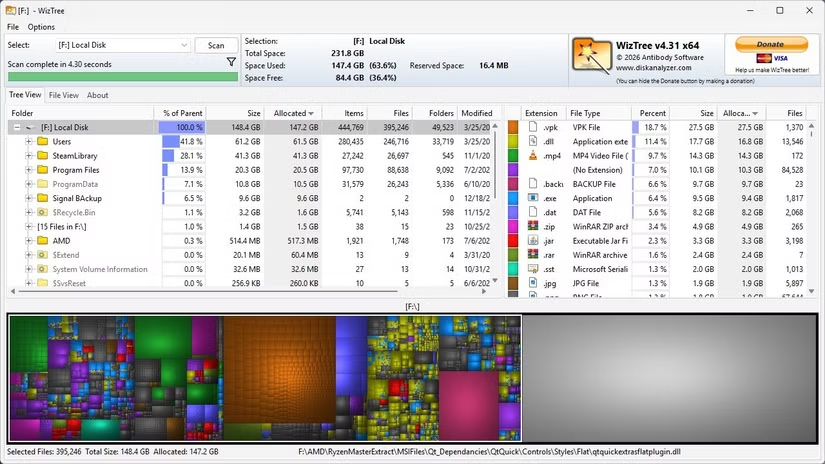
Windows 11’s built-in storage tools are slow and give high-level summaries that don’t reveal what is actually using up storage space on your drive.
If you’re trying to actually clean up your drive, that isn’t all that helpful. You might be told that “Other” is using up 500 gigabytes, and it’ll even show you the folders. Unfortunately, the utility ends there. You can’t manage that space without switching to File Explorer.
WizTree scans the file system directly, which works well on SSDs and can produce a visual map of disk usage quickly. Mechanical hard drives will naturally be much slower.
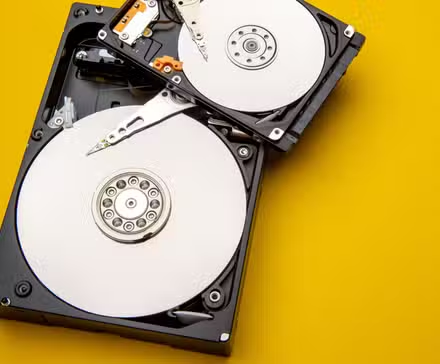
In practice, if you need a quick visual representation of what occupies your disk, and you’re working with a modern drive, WizTree can save time. Even in scenarios where it isn’t faster, it provides a very helpful user interface that lets you directly clear out space without leaving the application.
Ditto makes your clipboard history useful
Windows’ built-in clipboard is only a decent start

Windows added clipboard history a while back, but it only stores a handful of items, lacks search, and won’t save your history between restarts.
The absence of a search function is a pretty glaring omission if you find yourself copying and pasting frequently. Often, while writing or researching a topic, I’ll accumulate more than a dozen links about different topics that I may want to reference later. The default Windows clipboard forces me to scroll through the list of things I’ve copied to hunt for what I want.
Ditto does it better. It maintains a long, searchable history that includes text, images, and more. It also supports syncing between devices, allowing you to pull copies from another computer.
That means my list of sources can quickly be searched rather than scrolling up and down until I find it. It is a small quality of life improvement, but one I use every single day.
Everything replaces Windows Search entirely
Lightning-fast search with no nonsense
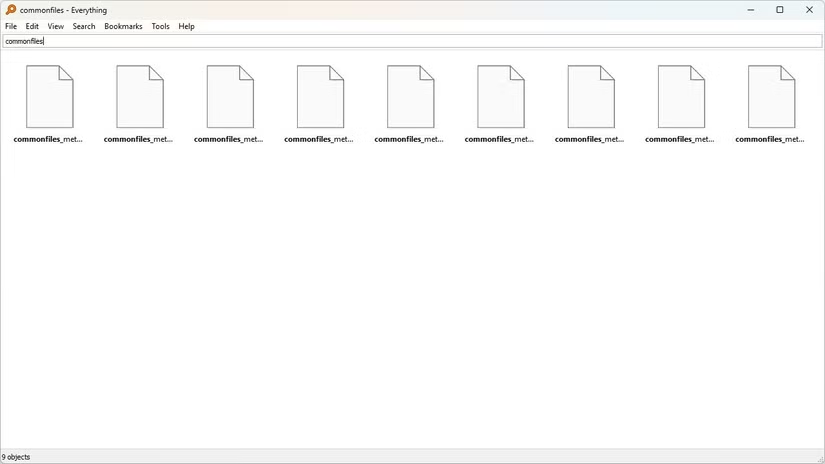
Windows Search is pretty hit and miss. Sometimes it returns irrelevant results and can take an intolerably long time to search large drives. Fortunately, there is a better option.
Everything indexes files quickly and shows real-time results as you type. It also supports advanced filters that make it easy to narrow down your results.
I haven’t rigorously timed Everything against the default Windows search function, but I don’t need to—it is immediately noticeable how much faster it is. Additionally, Everything doesn’t include Bing search results by default like the Start Menu search does, so you won’t have internet search results popping up when you’re trying to find a local file.
LockHunter deletes stubborn files
No more mysteriously locked files
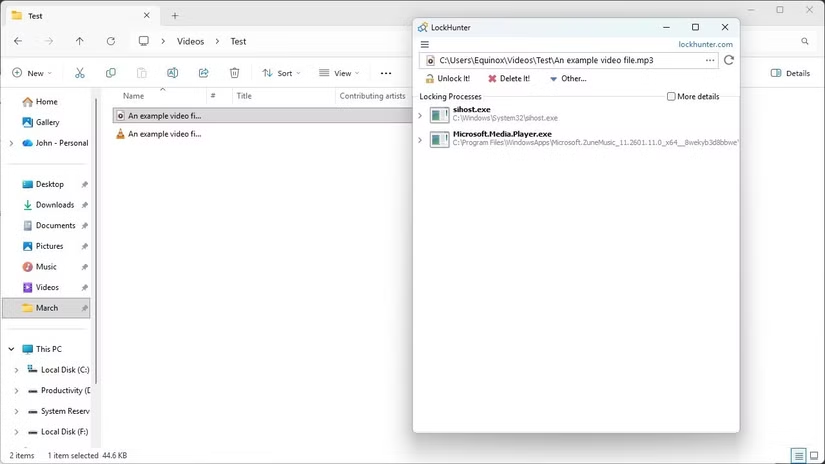
Trying to move or delete a locked file on Windows often results in vague errors telling you that a file is in use without specifying which program is using it or why, though it has gotten better.
That is a problem. If you don’t know what program is using a file, you can’t free it up. You’re stuck looking at the file, comparing that to your active processes in Task Manager, and trying to guess which program is the likely culprit.
LockHunter shows which process locks a file and allows you to unlock it safely. It also offers the option to terminate processes if necessary.
It removes the guesswork and manual searching that is normally required. It doesn’t come up all that often, but I’m always glad to have it when it does.
Ending a process while it is using a file can result in file corruption. If you’re deleting a file, that doesn’t matter. If you’re just trying to move it, you should find a way to gracefully close the program instead to ensure nothing gets corrupted.
Windows 11 has a few rough edges, but it is fixable
These are five tools that I’ve been using regularly, and without them, Windows 11 feels almost incomplete.
If you’re looking for other great programs, I’d recommend checking out PowerToys. There are more than 30 applications that solve a huge range of problems.
Source: Read Full Article