









The best things in life are free. At least, that’s how the saying goes, but it does seem a little ironic that the most practical, valuable tools on a computer are often created by someone who just wanted to solve a problem that was apparently beneath the notice of massive software developers.
Windows is the poster child for amazing free utilities that could easily have made their creators rich, but instead you can have them for free and perhaps donate some money to the geniuses who made them. As a case in point, these four facilities are so good, you’ll wonder how you survived without them.
PowerToys turns windows into the OS it should have been
The missing piece of the Windows experienced
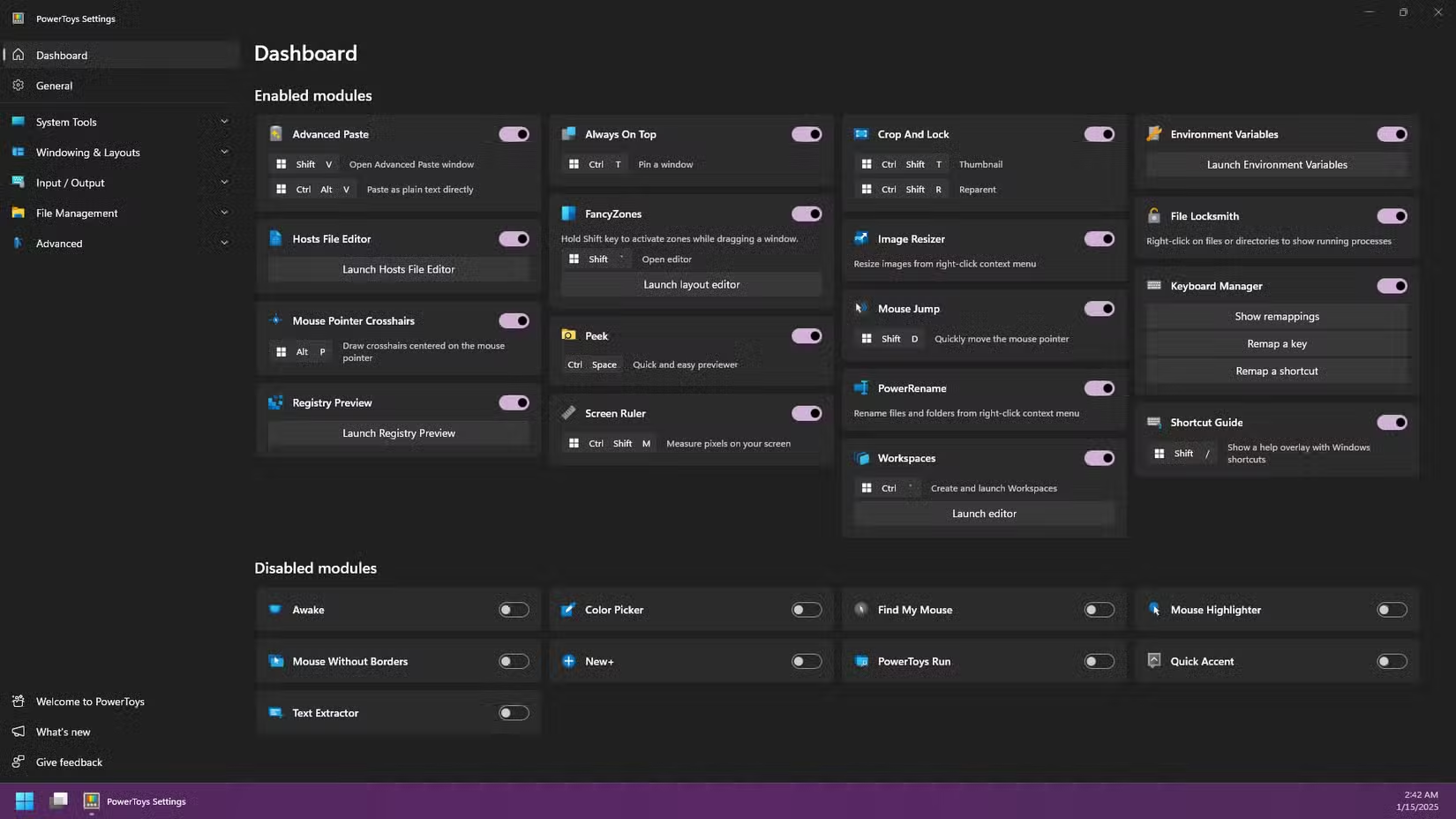
It boggles my mind that PowerToys isn’t simply included with Windows by default. After all, it’s created and maintained by a team at Microsoft. At the very least, it could be a box you tick when you install Windows, or an option you activate in a setting somewhere in the bowels of the operating system. Yet, this collection of (in my opinion) essential Windows mods and tools is a completely separate download.
While Windows is happy to push random solitaire or jewel-swapping apps at me, even pre-installing them for my “convenience,” it never notices that I’m struggling with locked files, renaming large batches of files, or that I need Spotlight Search equivalent on Windows. PowerToys does this and much, much more. Despite the name, I don’t think it’s really only suited to power users. There’s something in the PowerToys box that will make every Windows user’s life easier in some way.
Everything makes Windows Search feel obsolete
This is how it’s supposed to work!
When I used Windows 7 for the first time, the most impressive feature was the search function in the Start Menu. It instantly brought up anything I searched for. It was so good that I stopped using desktop icons, and simply pinned a few icons to the taskbar and used the search function as a de facto launcher for everything else.
Then Windows search became slower, less relevant, and started pulling in internet results and Windows Store entries that are, quite frankly, thinly-veiled ads. As a result, when I do use Windows these days, I don’t bother using the search function at all. Especially switching back and forth with macOS and its brilliant Spotlight Search.
This brings us to Everything by voidtools. When you open Everything, you will literally see everything on your computer. At least, everything that has been indexed, obviously. Any search term you type in narrows down the list instantly, and it has plenty of advanced features packed in besides this amazing global search.
The app updates in real time, takes very little in terms of resources, and it’s completely free. It is hilarious how much better this is than the limp search function we got from a trillion-dollar software company.
Where “X” is whatever you can think of
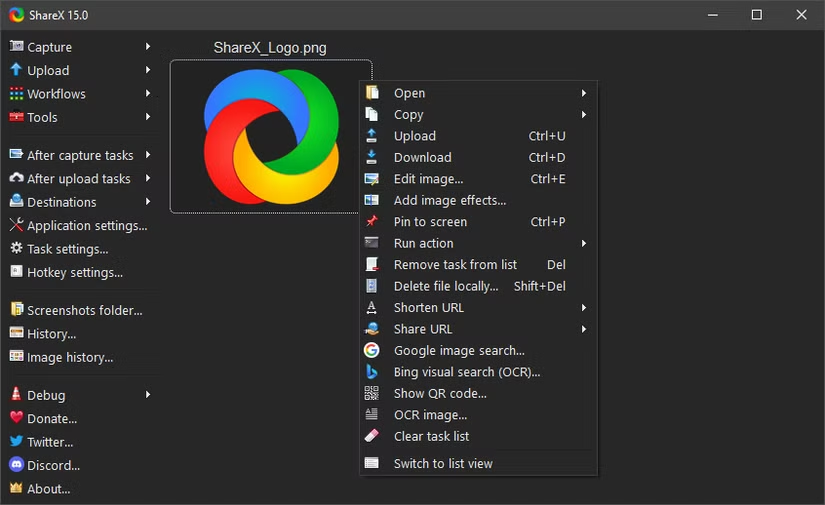
ShareX is a great tool for someone like me who has to take dozens of screenshots every day as part of my work, but this versatile utility can do so much more than grab a basic screenshot.
You have all the usual options, like capturing a specific window, a region, or recording your screen. However, ShareX expands that into capturing freehand and elliptical regions, recording the screen directly to a GIF, scrolling capture, and more.
Once your capture is made, the tools you need for most screenshot manipulation are already built in. You can add borders, arrows, lines, and even sequential steps with the step tool. You can blur and pixelate sensitive information too.
The only bad thing I have to say about ShareX is that it’s not available for Mac. Since I do most of my work on macOS, I could really use it over there, but whenever I have to create Windows tutorials, ShareX is the right tool for the job. It’s completely free, but the developer does accept donations. So if you try it and like it, throw a few bones to the project!
AutoHotkey turns repetitive tasks into one keypress
All that power in just one button
AutoHotKey isn’t actually a tool that I use every day on Windows because I’m no longer a daily Windows user, and even when I was, I didn’t need automation all the time.
However, when the day comes you wish you had some way to automate tasks on your Windows machine, you’ll be glad that this amazing Open-Source utility exists. I think the site summarizes it best:
“AutoHotkey is a free, open-source scripting language for Windows that allows users to easily create small to complex scripts for all kinds of tasks such as: form fillers, auto-clicking, macros, etc.”
It uses a special simple scripting language that basically lets you craft keyboard shortcuts that are only limited by your imagination, and the syntax of the scripting language. Now, in truth, you don’t even need to learn the language. At least not by heart. There are plenty of pre-made AutoHotKey scripts out there which probably already do almost what you need. Just copy them and modify them for your own purposes.
Yes, AutoHotKey requires some prep and learning, but once you’ve automated a dozen or so of your most tedious repetitive tasks you do every day, you’ll wonder how you lived without it!
Source: Read Full Article